
Most call recordings go wrong at the edges. You join the call and forget to start, or the call ends and the recorder keeps running through twenty minutes of typing. Poffle handles both edges on your Mac. It notices when a call app starts using the microphone, asks whether you want to record, and can stop by itself shortly after the call ends.
The recording, its transcript and the notes stay on this Mac. Poffle does not join the call as a participant and does not announce the recording to anyone, so telling the other people on the call is up to you.
How Poffle notices a call
macOS keeps a list of the apps that are using audio input. Poffle reads that list to see when a call app holds the microphone. Reading it needs no extra permission, and detection never opens, records or analyses audio. Poffle's own recording is left out of the list.
These desktop apps count as calls: Zoom, Microsoft Teams (new and classic), FaceTime, Phone, Slack, Discord, Webex, Skype, WhatsApp, Telegram and Signal. Browsers count too while they hold the microphone: Safari, Google Chrome, Microsoft Edge, Arc, Dia, Brave, Firefox, Opera, Vivaldi and Chromium. Google Meet runs in the browser, so Poffle names the browser rather than the site. The offer says Google Chrome or Safari, not Google Meet. If you added Meet to the Dock as a Safari web app, Poffle uses that web app's name.
A call begins once a call app has used the microphone continuously for 3 seconds. It ends 20 seconds after the last call app releases it. Moving from one call app to another within those 20 seconds, for example from a chat app to a meeting link in the browser, still counts as the same call. A browser can also use the microphone for something that is not a call, such as voice search on a website, so treat a browser offer as a question rather than a certainty.
Set up once
- Open Poffle's Settings > Speech > Meetings. Check that Offer to record calls and Stop when the call ends are on. Both are on by default.
- Allow microphone access when macOS asks. Apple explains this permission in Control access to the microphone on Mac.
- To record the other participants, allow Poffle under System Settings > Privacy & Security > Screen & System Audio Recording. macOS lets you allow audio without screen recording, and Poffle records audio only. See Apple's guide to screen and system audio recording.
- Make a short test call with a colleague or a second device. Record it, then play back both sides before you rely on the setup.
Poffle records your microphone and the Mac's audio as two separate tracks. The microphone track uses the Mac's current default input; if you connect headphones, Poffle follows the new default. The Mac audio track contains sound from every other app, not only the call. Mute music and noisy notifications while you record.
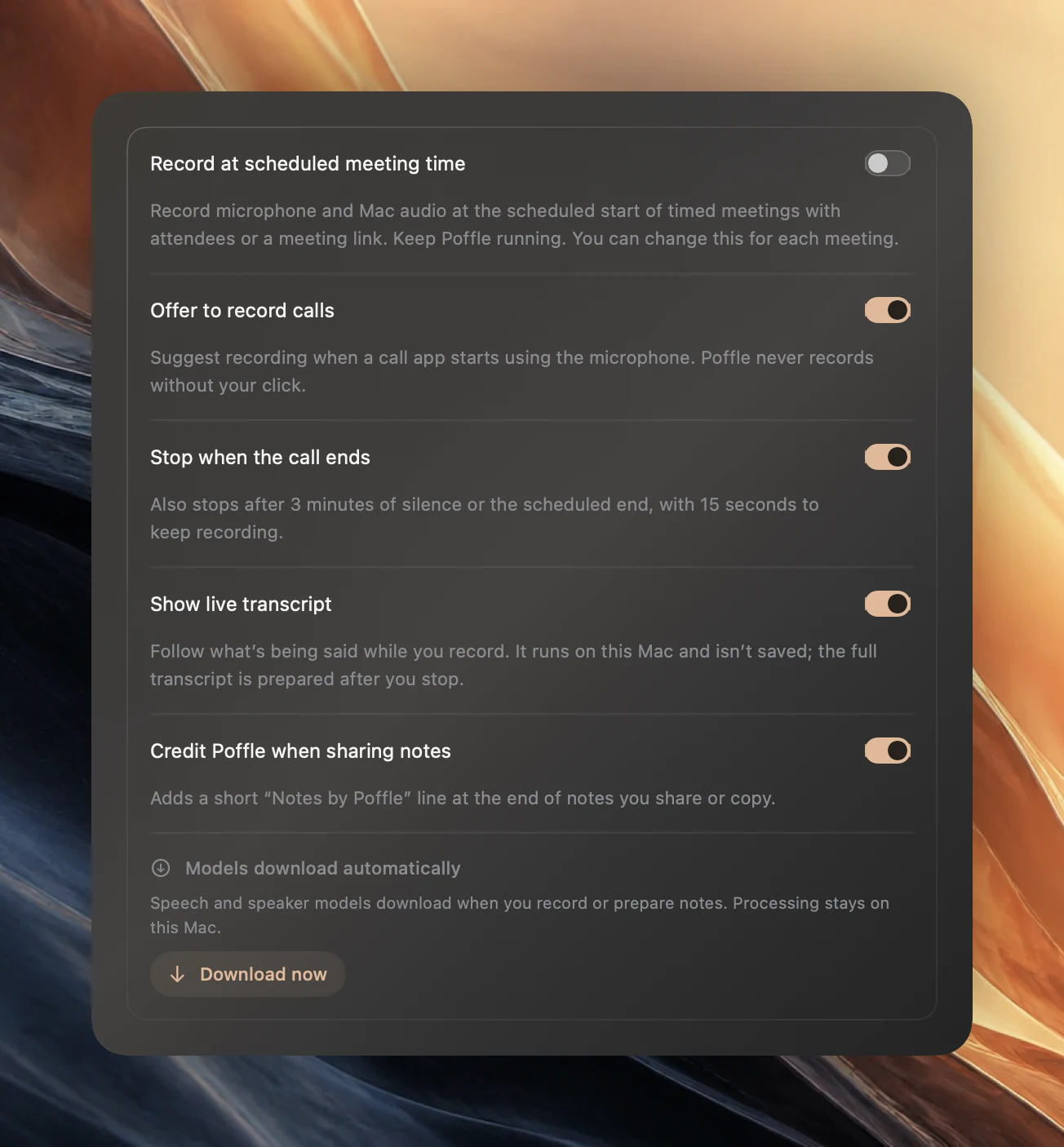
Record a call when Poffle asks
- Join the call in your usual app.
- After a few seconds, Agenda's peek at the edge of the screen shows a red record dot and ✕, with the app's name below them. The same offer, Record this call?, appears in Agenda's Meeting notes and in Capture's Meetings section.
- Tell everyone that you are recording, and give them a chance to object.
- Choose Record, or click the red dot in the peek. To skip this call, click ✕ instead. Poffle will not offer the same call again.
Nothing records until you click. The offer disappears when the call ends. It does not appear while another recording is running, when a scheduled recording is due to start within 2 minutes, or without an active trial or licence.
Poffle links the recording to your calendar when the match is clear: exactly one timed event is in progress or starts within 5 minutes, or exactly one of several overlapping events has a meeting link or attendees. The recording then keeps the event's title and attendees, which helps later with speaker names and note templates. Otherwise it is saved under the app's name, such as “Zoom call”. To choose the event yourself, open it in Agenda and choose Record meeting.
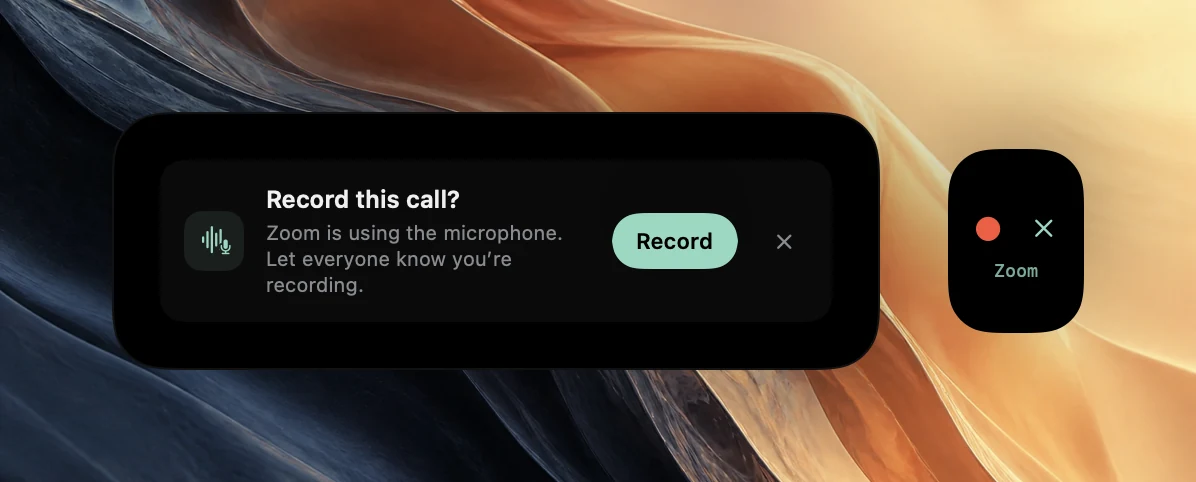
Tell everyone before you record
Poffle records on your Mac. Other participants get no notice from Poffle, and the call app is not told that a recording is running. That differs from the recording features built into many call apps, which typically show participants a notice when recording starts.
Say it at the start of the call, or write it in the chat: “I'm recording this on my Mac for notes. Tell me if you'd rather I didn't.” Rules about recording conversations differ between countries, regions and organisations, and some conversations should not be recorded at all. When you are unsure, ask first and take written notes instead.
How the recording stops by itself
With Stop when the call ends on, Poffle watches for three situations:
- The call ended. A call app that used the microphone during the recording has released it for 20 seconds.
- The room went quiet. Both the microphone and the Mac audio have stayed very quiet, below about -42 dBFS, for 3 minutes. Paused time does not count.
- The meeting was scheduled to end. For a recording linked to a calendar event: 5 minutes after the scheduled end, once no call app holds the microphone, or after a minute of silence. A call that runs over is waited for, and extending the event in your calendar postpones the stop.
Every automatic stop starts with a 15-second countdown in the recording peek and in Agenda's recording controls, together with the reason, such as “Zoom ended the call.” Choose Keep recording, or click the red dot in the peek, to continue. Keeping the recording also stops the same reason from firing again until it re-arms: until a call app takes the microphone again, until sound returns, or, for the scheduled end, for the rest of the recording. To stop and save at once instead, click ■ in the peek.
A paused recording still stops when its call ends, so pausing during a break does not leave a recorder running after everyone has left. When a recording stops by itself, the saved meeting shows why, for example “Stopped automatically when Zoom ended the call.”
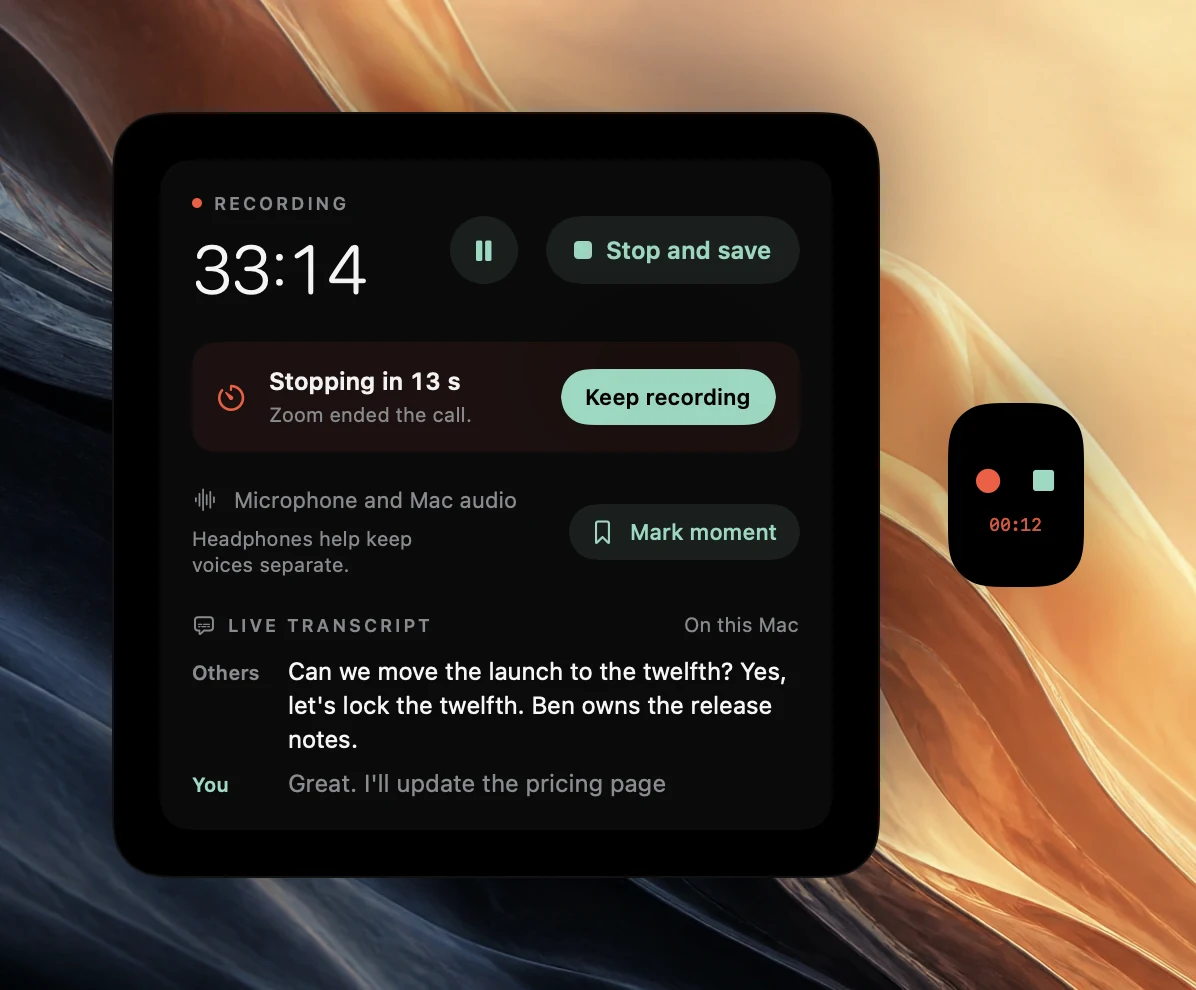
What gets trimmed after an automatic stop
The 20-second call window and the countdown add quiet time to the end of a recording. After a stop because the call ended or the room went quiet, Poffle trims both tracks to 2 seconds after the call app last held the microphone, or after the room went quiet. The two tracks stay aligned. Marked moments after the cut are removed with it.
Poffle writes each trimmed track to a temporary copy, reads it back to check it, and only then replaces the original. If either track cannot be trimmed, the recording keeps its full length. A stop at the scheduled end without silence keeps all the audio. Manual stops, quitting Poffle, sleep and capture interruptions never trim anything.
After the call
Once the recording is saved, Poffle prepares a timestamped transcript on this Mac with Apple's speech recognition, separates the voices in the Mac audio track, and writes notes, decisions and action items when Apple Intelligence is available for the meeting's language. The speech and speaker models download once, the first time you record or prepare notes.
While recording, you can follow a live transcript and mark important moments with Control-Option-B. For setup specific to one app, see the guides for Zoom, Microsoft Teams and Google Meet.
If the offer does not appear
- Check that Offer to record calls is on and that nothing else is recording.
- Give the call a few seconds. A short burst of microphone use does not count as a call.
- Check that the call app itself has microphone access. If it cannot use the microphone, there is nothing for Poffle to notice.
- If Agenda's activity peek is set to Off in Settings > Activity, no peek appears at the screen edge. With Briefly, it fades after a few seconds. Either way, the offer stays in Agenda's Meeting notes and Capture's Meetings section until the call ends.
- If you dismissed the offer earlier in the same call, it will not come back. Start the recording from the event in Agenda, or choose Record meeting in Capture's Meetings section.
- Apps that Poffle does not recognise produce no offer. Record those calls by hand. The stop after 3 minutes of silence, and the stop after a calendar event's scheduled end, still apply.
To try the whole flow, download Poffle and record a short call with someone who knows it is a test.
Sources
Official documentation and references used in this guide.