
Some moments in a meeting matter more than the rest: a number you will need, a promise to a customer, the sentence where a decision finally lands. Writing it down pulls you out of the conversation. Marking it takes one key press. Poffle saves the mark with the recording and makes sure the moment appears in the notes it writes afterwards.
Three ways to mark a moment
- Press Control-Option-B. The shortcut works from any app while a meeting is recording, so you can stay in the call window.
- Click Mark moment in the recording controls, in Agenda or in Capture's Meetings section.
- Choose Mark moment from Poffle's menu in the menu bar.
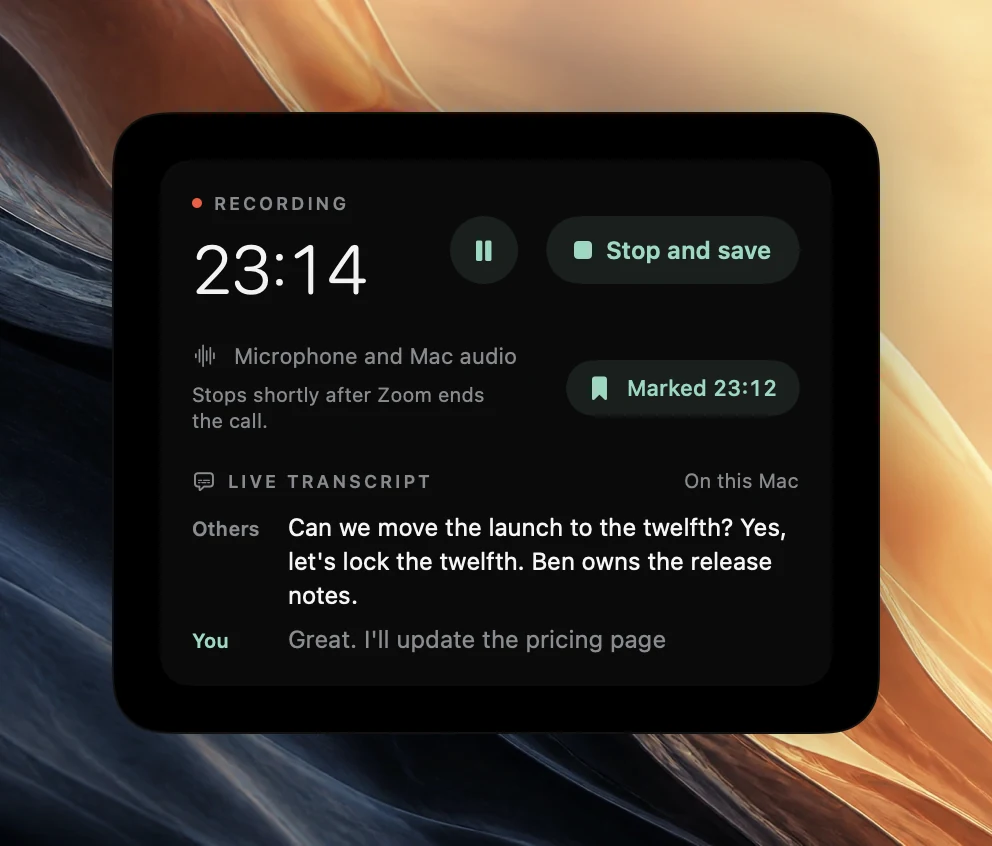
The button confirms the mark for a moment with the time in the recording, such as “Marked 23:12”. You can mark as often as you like. A second mark within 2 seconds of the last one is treated as the same mark, so a double press does not create two.
Change or remove the shortcut
Open Poffle's Settings > Activity > Keyboard and find Mark moment. Record a different combination there, or remove it. Settings reports a conflict if another shortcut already uses the keys.
Poffle only claims the shortcut while a meeting is recording. The rest of the time, other apps keep Control-Option-B. If one of your apps uses that combination for something you need during calls, change Poffle's to something else. Apple lists the modifier keys and their symbols in Mac keyboard shortcuts.
What a mark records
A mark is a position in the saved recording. Paused time is not counted, so the mark lines up with the audio you will play back. Marks are ignored while the recording is paused or being saved, and the button is unavailable then.
If the recording later stops by itself because the call ended or the room went quiet, Poffle trims the silent tail. Marks after the trim point are removed along with that audio. Recording calls that stop automatically explains when trimming happens.
How marks show up in the notes
You usually press the key just after something important was said. Poffle allows for that. A mark belongs to the turn being spoken at that moment, or to the one just before it. If the turn at the mark is a brief reply such as “Yes!”, the mark moves to the substantive turn before it, which is usually what you meant.
When Poffle writes the notes, it tells the notes model which turns you marked. If the notes already cover a marked turn in a point, a decision or an action, nothing more is added. If none of them does, Poffle adds a point to a Marked moments section: a short summary checked against that turn, or a quote from it when a summary cannot be checked. A marked moment does not get lost because the model found it less important than you did.
Like everything in the notes, each point has a timestamp that plays its source. See automatic meeting notes and action items for how notes are written and checked.
How marks show up in the transcript
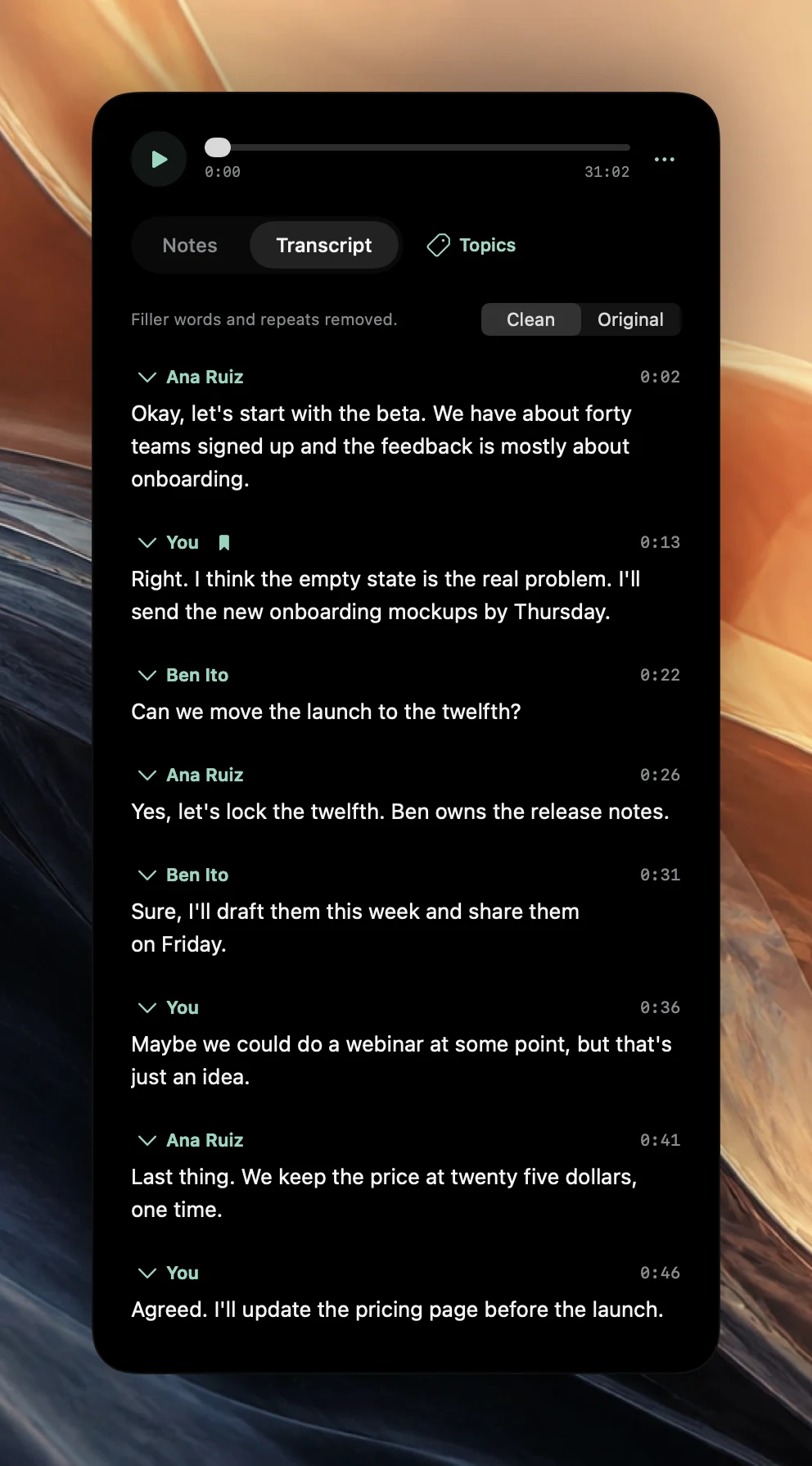
Open the meeting and switch to Transcript. A marked turn has a bookmark symbol next to the speaker's name. Point to it to see “You marked this moment”. Click the turn's timestamp to play it, or click a sentence to start from that sentence.
Review your marks after the meeting
A mark is a reminder to look again. A few minutes after the meeting, while you still remember the context, go through them:
- Open the meeting's Notes. If there is a Marked moments section, start there; the other marked turns are already covered by points, decisions or actions.
- Play each one with its timestamp. Check the exact number, name or date you marked it for.
- If a mark captured a task, find it under Action items and choose Remind me to put it in Apple Reminders with a date.
- If you want the exact words, switch to Transcript, find the bookmark, Control-click the paragraph and choose Copy passage.
Marks are only visible in your own copy of the meeting. Nobody on the call sees that you pressed the key, and Poffle does not announce marks any more than it announces the recording itself.
What is worth marking
- Numbers and dates. A price, a deadline, a quantity. These are the details you will want to check against the audio.
- Commitments to people outside the room. “We'll have it to you by the 20th.”
- A decision after a long discussion. The moment the group settles, not the twenty minutes before it.
- Words you want to quote. A customer describing a problem in their own words, for example.
- Something to follow up. A question nobody could answer, or a name you did not catch.
Mark sparingly. Five marks in an hour point clearly at the important parts; fifty make the notes longer without making them clearer. If you are in an in-person meeting, place the Mac where its microphone hears everyone, and tell people you are recording before you start.
Marks work in any meeting you record with Poffle, including calls Poffle offers to record. Download Poffle and try a mark in a short test recording, then look for it in the notes.
Sources
Official documentation and references used in this guide.