
To record a Zoom call on a Mac with both sides of the conversation, you need two sources: your microphone and the audio Zoom plays through the Mac. Zoom's own computer recording can capture a meeting too, but it depends on the host and on your account's settings. Poffle keeps a separate recording on your Mac, prepares the transcript there, and can stop by itself when you leave the call.
Whichever tool you use, tell the other participants before you start. Poffle does not announce recordings, and Zoom does not know that Poffle is recording.
How Poffle notices a Zoom call
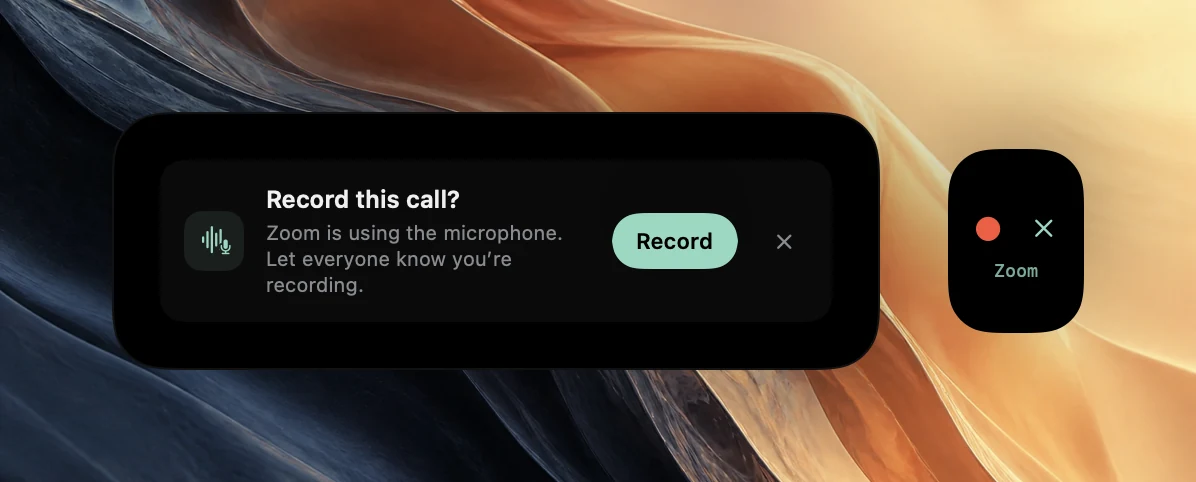
Poffle watches which apps are using the microphone, from a list macOS already keeps. Reading it needs no extra permission and opens no audio. When the Zoom app has used the microphone for 3 seconds, Poffle treats it as a call and offers to record it.
The offer appears in Agenda's peek at the edge of your screen, as a red record dot and ✕ with Zoom's name under them. It also appears in Agenda's Meeting notes section as Record this call?, with the reminder “Zoom is using the microphone. Let everyone know you're recording.” Nothing records until you click the red dot or Record. If you join through the Zoom web client instead of the app, the offer names your browser, for example Google Chrome or Safari, because macOS reports the browser as the app using the microphone.
Set up the Mac and Zoom once
- Allow Poffle to use the microphone when macOS asks. You can review it later under System Settings > Privacy & Security > Microphone, as Apple describes in its microphone guide.
- Allow Poffle under System Settings > Privacy & Security > Screen & System Audio Recording. This is what lets Poffle hear the other participants. Apple lets you allow an app to record audio only; Poffle records audio, not your screen.
- In Zoom, open Settings > Audio and check the speaker and microphone. Zoom's test plays a tone and shows the input level, as described in its audio testing guide.
In Zoom, choose the microphone that macOS uses as its input. Poffle records the Mac's current default input, and it switches when that default changes, for example when you connect headphones. If Zoom uses a different microphone, Poffle's copy of your voice comes from a microphone you aren't speaking into.
Record the call
- Join the Zoom meeting as usual.
- Tell everyone you're recording, and give anyone who objects a chance to say so.
- Click the red dot in the peek, or Record in Agenda's Meeting notes section.
- Use Pause for an off-the-record moment. While paused, neither the microphone nor the Mac audio is saved.
- Press Control-Option-B, or click Mark moment, when something is worth finding again.
If the meeting is in your calendar, the recording joins that event. When exactly one timed event is in progress or starts within 5 minutes, Poffle links the recording to it and keeps its title and attendees. Otherwise the recording is saved as “Zoom call”. To be certain of the link, open the event in Agenda before joining and choose Record meeting there.
Get clean audio from Zoom
Poffle stores two tracks: your microphone, labelled You, and the Mac audio, where the other participants are. The cleaner each track is, the better the transcript and the speaker separation.
- Use headphones. Through speakers, other voices reach your microphone as well. Poffle removes microphone passages that repeat the Mac audio and notes it in the meeting, but this is not echo cancellation, and fragments can remain.
- Know what Zoom's noise suppression changes. Zoom's background noise suppression, under Settings > Audio in the microphone modes, has Auto, Low, Medium and High levels (see Zoom's audio setup guide). It cleans what Zoom sends to others. Poffle records your microphone directly, so Zoom's suppression doesn't clean Poffle's copy of your voice. A quiet room or a headset microphone helps more.
- Silence other sounds. Poffle records all audio your Mac plays, apart from its own. Notification sounds, music and video in another app end up in the recording too.
When you leave the Zoom call
With Stop when the call ends turned on in Settings > Speech > Meetings, which is the default, you don't need to remember the stop button. After Zoom stops using the microphone for 20 seconds, Poffle shows Stopping in 15 s with “Zoom ended the call.” Click Keep recording, or the red dot in the peek, if the conversation continues in the room. To stop and save right away, click ■ in the peek.
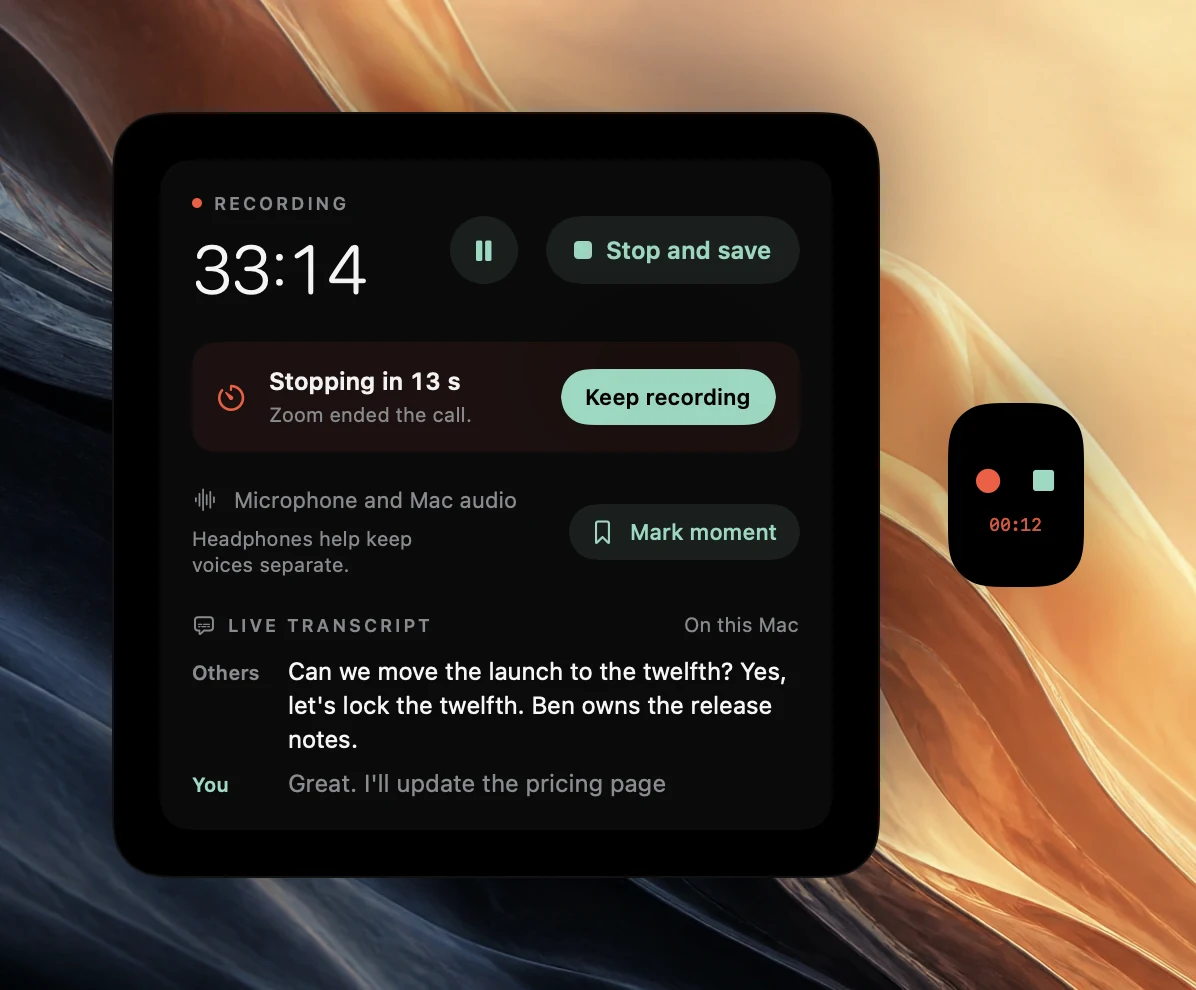
When the countdown finishes, Poffle trims both tracks to 2 seconds after Zoom last used the microphone, and the meeting shows “Stopped automatically when Zoom ended the call.” A manual Stop and save is never trimmed.
If you join another call within those 20 seconds, Poffle treats it as the same call and keeps recording. Choose Stop and save between meetings when you want separate notes.
After the call
Poffle prepares a timestamped transcript with Apple's on-device speech recognition, then separates the voices in the Mac audio. When Apple Intelligence is available for the language, it writes notes with decisions and action items. Nothing is uploaded. A meeting title such as “Customer demo” selects the customer call layout automatically; the templates guide explains the others, and the notes guide shows how to check what was written.
Zoom recording questions
Does the host need to allow recording?
Zoom's host permission controls Zoom's own recorder. Poffle records what your Mac plays and hears, so it doesn't ask Zoom. That makes asking the people in the meeting your responsibility, along with following any rules your organisation has.
Will others see that I'm recording?
Not from Poffle. Zoom says participants receive a notification when a Zoom recording starts, in its recording consent disclaimer article, but Zoom knows nothing about Poffle. Say it out loud, or in the chat.
Why didn't the offer appear?
Check that Offer to record calls is on in Settings > Speech > Meetings. Poffle doesn't offer while something is already recording, when a scheduled recording is about to start, or without an active trial or licence. You can still start with Record meeting.
Is this Zoom's transcript?
No. Poffle transcribes its own recording on your Mac, so it works the same whether or not Zoom's transcription features are turned on.
Sources
Official documentation and references used in this guide.