
Google Meet runs in your browser, so there's no Meet app on the Mac to look for. Meet's own recording is available with certain Google Workspace editions. To keep a recording and transcript on your Mac instead, you can record your microphone and the browser's audio locally. This guide covers how that works with Poffle, which browser settings matter, and what changes compared with a desktop call app.
Why the offer names your browser
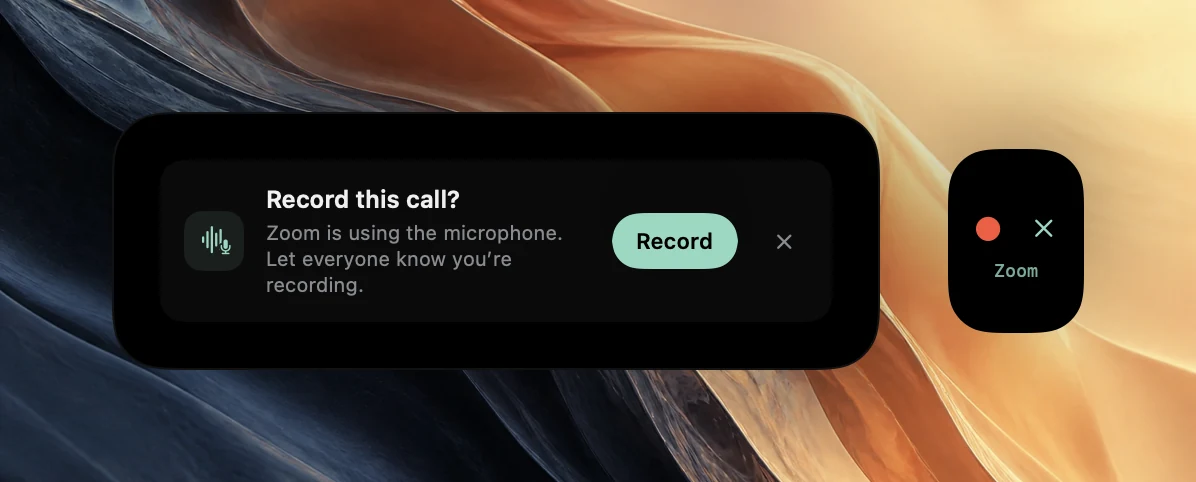
Poffle notices calls by checking which apps use the microphone, from a list macOS keeps. It can't see which website a browser has open, and it never reads your tabs. So when a Meet call starts in Chrome, the offer says “Google Chrome is using the microphone.” The same applies to Safari, Microsoft Edge, Arc, Dia, Brave, Firefox, Opera, Vivaldi and Chromium.
Two things follow. A browser can use the microphone for something other than a call, such as voice input on a website, so read the offer before clicking Record. And if you added Meet to the Dock as a Safari web app, the offer uses that web app's name instead of Safari's.
Two layers of microphone permission
Meet needs the microphone at two levels. macOS must allow the browser to use it, and the browser must allow meet.google.com. In Chrome, the site permission is under Privacy and security > Site settings > Microphone, as Google's Chrome help explains.
Poffle needs its own access: the microphone for your voice, and Screen & System Audio Recording for the browser's audio, which is where the other participants are. Poffle records audio only, not the browser window.
Record a Meet call
- If the meeting is in your calendar, open it in Agenda first. Choose Join meeting to open the Meet link, then Record meeting. Starting from the event keeps its title and attendees with the recording.
- Otherwise join from the browser, wait a few seconds for Record this call?, and click Record.
- Tell everyone you're recording before the conversation starts.
- Leave the call in Meet when you're done.
A recording started from the offer is still linked to your calendar event when exactly one timed event is in progress or starts within 5 minutes. Without a matching event, it's saved under the browser's name, for example “Google Chrome call”.
Audio settings in Meet
Before you join or during the call, click More options > Settings > Audio to choose the Microphone and Speakers, and Test to check the speakers, as described in Google's audio and video tips. Pick the devices your Mac uses by default. Poffle records the Mac's current default input as your voice and follows it when you plug in headphones.
Meet's Noise cancellation is in the same Audio settings, for certain Workspace editions (Google's noise cancellation article). It filters the audio Meet sends from your side. Poffle records your microphone directly, so Meet's filter doesn't clean Poffle's copy of your voice. Headphones help both ways: others hear less echo, and your microphone doesn't pick up the meeting.
Tabs, leaving and the automatic stop
When you leave the call and the browser stops using the microphone for 20 seconds, Poffle shows a 15-second countdown with “Google Chrome ended the call.” Choose Keep recording to continue. Otherwise the recording stops, and both tracks are trimmed to 2 seconds after the browser last used the microphone.
Because Poffle follows the browser rather than the tab, another tab that still uses the microphone keeps the call going as far as Poffle can tell. Close it, or choose Stop and save. Remember too that Poffle records all audio the Mac plays: a video in another tab is recorded along with the meeting.
Telling people
Google says participants get a notification when a Meet recording starts or stops. Poffle's recording doesn't go through Meet, so no one is notified. Say so at the start, and type it in the chat for anyone who joins later.
Google Meet questions
Do I need a Workspace edition that can record?
Not for Poffle. Workspace editions control Meet's own recording. Poffle records on your Mac, and the transcript is prepared there with Apple's speech recognition.
I used my phone for the call audio. What happens?
Google suggests using your phone for audio when the computer's microphone or speakers aren't working. In that case the call doesn't pass through the Mac, so Poffle has nothing to record.
Can I keep Meet's captions on?
Yes. They're part of Meet and don't affect Poffle. While you record, Poffle shows its own live transcript on your Mac, then prepares the full transcript after you stop.
Sources
Official documentation and references used in this guide.