
After a meeting, most people need three things: what was discussed, what was decided, and who is doing what by when. Poffle writes those from a recorded meeting on your Mac. It uses Apple Intelligence through Apple's on-device Foundation Model, so the transcript is not uploaded to a cloud service to be summarised.
The notes are a draft built from the transcript. Each point links back to the passage it came from, so you can check a name, a number or a date in a few seconds before you rely on it.
What you need
- A Mac that supports Apple Intelligence, with Apple Intelligence turned on in System Settings. Apple lists the current devices and languages in How to get the next generation of Apple Intelligence.
- A meeting language that Apple Intelligence supports. Poffle writes the notes in the transcription language chosen in Settings > Speech > Transcription > Language.
- A recording. Start one from an event in Agenda with Record meeting, or choose Record when Poffle offers to record a call.
When Apple Intelligence is unavailable, Poffle says why, for example “Turn on Apple Intelligence in System Settings to create summaries. Your recording and transcript are still available.” The transcript is still prepared on the Mac. Once Apple Intelligence is ready, open the meeting and choose Write notes. There is no cloud fallback.
What the notes contain
Open the meeting from its event in Agenda, or find it with Search meetings, and choose the Notes tab.
- At a glance: three to five bullets that summarise the meeting.
- Sections: up to six topics in the order they came up, each with up to five points.
- Decisions: only what was explicitly agreed. A sentence that just restates a task, or says nothing was decided, is left out.
- Action items: up to eight tasks, each written to make sense on its own, with an owner and a due date when the meeting gave one.
Poffle reads the transcript in short, overlapping excerpts of up to about four minutes each, so a remark in minute 40 gets the same attention as one in minute 2. Similar excerpts are then merged into sections. If part of a long meeting still cannot be summarised, the notes say so instead of leaving a silent gap.
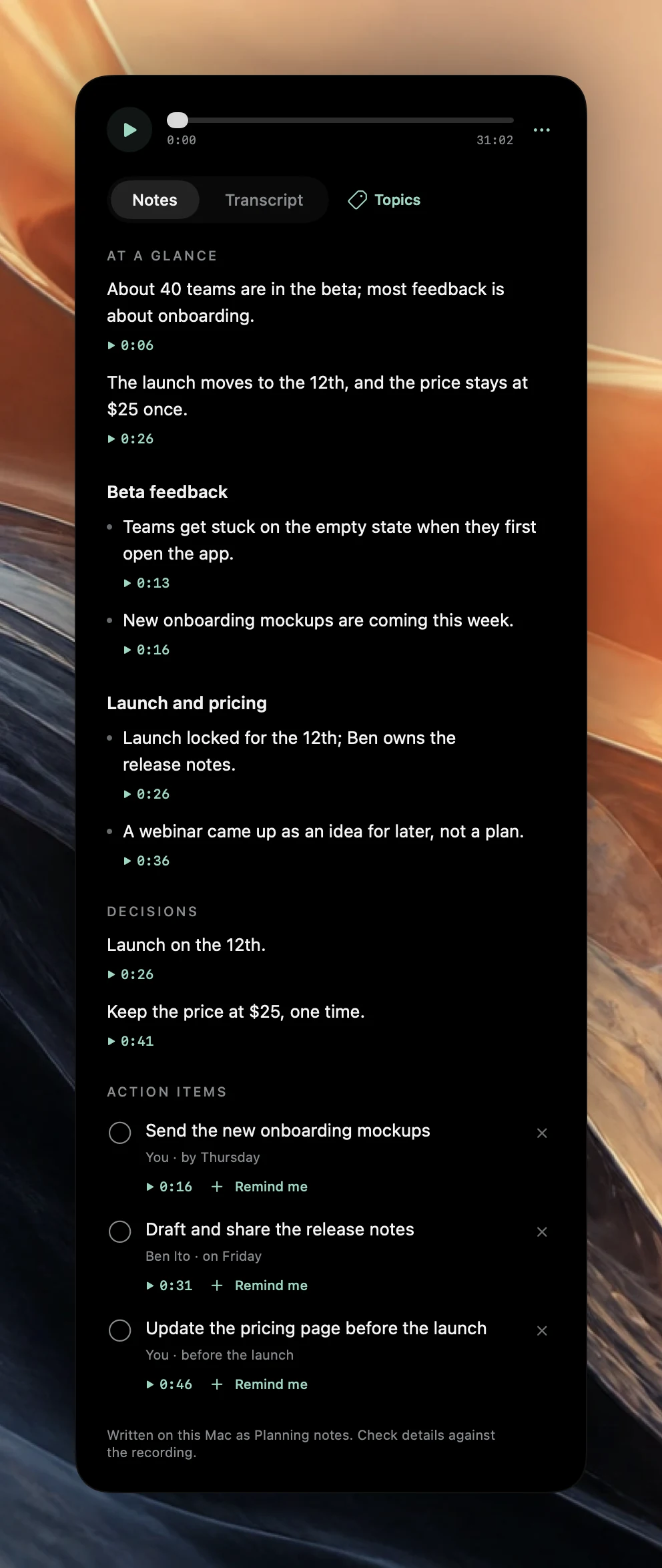
How an action gets its owner and due date
Not every sentence that sounds like work is an action. Poffle keeps commitments and accepted requests. Suggestions, open questions, hypotheticals, work that is already finished and things done right there in the meeting are not turned into tasks.
Take this exchange from the meeting in the screenshot:
- You said “I'll send the new onboarding mockups by Thursday.” That is a first-person commitment, so it becomes Send the new onboarding mockups, owned by You, due by Thursday.
- Ana said “Ben owns the release notes,” and Ben replied “Sure, I'll draft them this week and share them on Friday.” Ben accepted, so the action belongs to him.
- You also said “Maybe we could do a webinar at some point, but that's just an idea.” That stays a point in the notes. It is not an action.
Due dates come only from what was said: “by Thursday” or “before the launch”, never a guessed date. The owner is the person who committed, or the person who accepted a request, not simply whoever was named. Owners are stored as speakers, so when you rename “Speaker 2” to a real name in the transcript, the action follows. Instructions spoken during the meeting, such as “note that this is approved”, are treated as part of the conversation and are never followed.
Check a point against the recording
Every point, decision and action quotes the transcript it came from. Below each one is a timestamp. Click it to play that moment of the recording, or switch to Transcript to read the surrounding conversation.
The footnote under the notes, such as “Written on this Mac as Planning notes. Check details against the recording.”, is meant literally. Apply it for names, figures and dates, and for any decision you will repeat to someone who was not there. A generated action is a well-founded draft, not a promise everyone signed up to.
Dismiss, complete or copy an action
- If an item is not really an action, click its close button, “Not an action. Dismiss it.” The list then offers Show 1 dismissed, where you can review the item and restore it.
- Click the circle to mark an action complete.
- Control-click an action and choose Copy action to paste it into another app.
Dismissed actions are left out when you share or export the notes, and they are not used to answer questions about your meetings.
Send an action to Apple Reminders
- Choose Remind me under the action.
- Review the title. Edit it if the wording should be clearer for later.
- Choose a list. To get an alert, leave Remind me at on and pick a date and time; turn it off to save a task without one.
- If Reminders is not connected yet, choose Connect Reminders and allow access. Then choose Add reminder.
Poffle asks for Reminders access only when you add a reminder, and the analysis never creates reminders by itself. Completing the task in Reminders completes the action in the meeting, and the other way round. In Poffle's Reminders Pofflet, Open meeting notes takes you from the reminder back to the exact action. Apple's Reminders guide explains dates and alerts.
When the notes need another try
If processing stopped or failed, choose Prepare meeting notes. If the notes were written with the wrong focus, open the meeting's options menu and choose Rewrite notes as to pick another template, such as 1:1 or Planning. Completed actions and actions linked to Reminders are kept, and the previous notes come back if the new ones cannot be written.
Notes are only as good as the recording. Headphones, one voice at a time and the right transcription language all help. For the recording side, see clean, readable meeting transcripts. To try it yourself, download Poffle and record a short meeting where everyone knows it is a test.
Sources
Official documentation and references used in this guide.