
A live transcript helps when you join a few minutes late, miss a number, or want to check a name before you say it back. Poffle shows one while a meeting is recording. It runs on your Mac with Apple's speech recognition, so the audio is not sent to a transcription service.
The live transcript is a reading aid, not the record. It is not saved. When you stop, Poffle prepares the full transcript from the saved recording, with speaker names, cleanup and timestamps you can play.
Turn on the live transcript
Open Poffle's Settings > Speech > Meetings and check Show live transcript. It is on by default. Changing it during a recording starts or stops the live view straight away; the recording itself is unaffected.
The live transcript uses the language chosen in Settings > Speech > Transcription > Language when the recording started. Set it to the main language of the meeting before you press record. System language follows the language of your Mac.
Live transcription only starts when that language's speech assets are already installed. It never starts a download by itself. The first time you record a meeting, Poffle prepares the language as part of the recording; meanwhile the live area reads “Live transcript starts when the speech language finishes downloading.” Keep the Mac online for that first download. Apple describes how these on-device speech assets are managed in its SpeechAnalyzer session.
Read it while you record
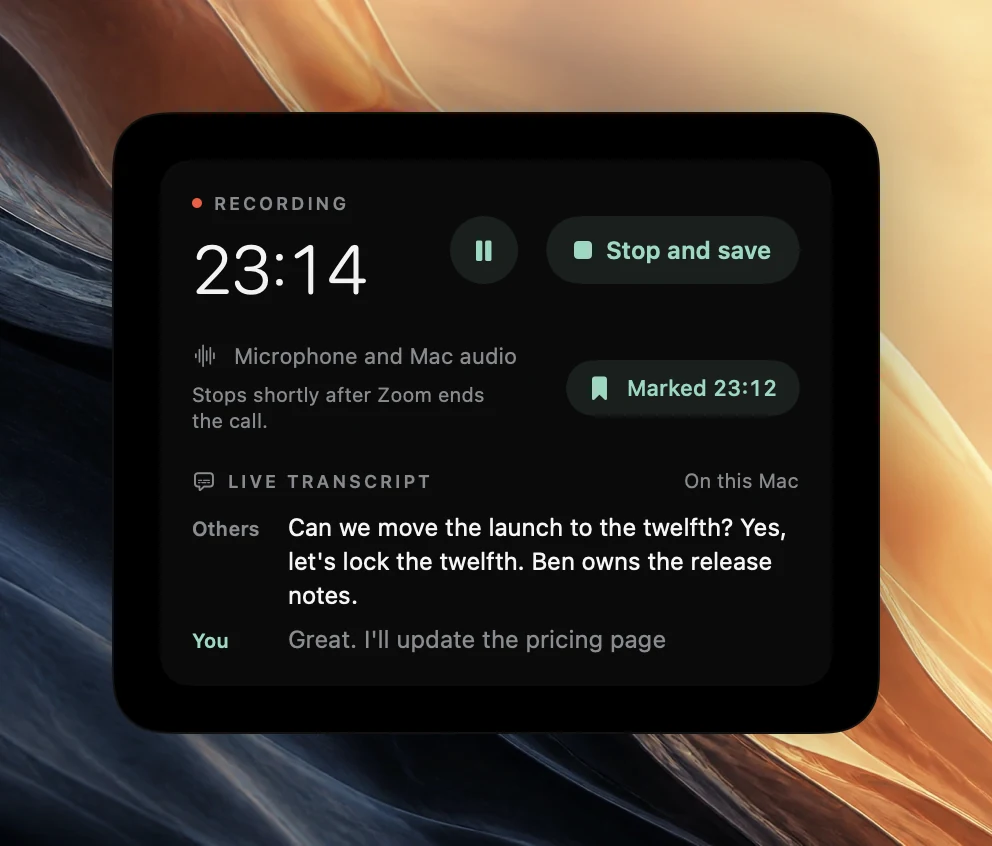
Start a recording from an event in Agenda, from Capture's Meetings section, or by choosing Record when Poffle offers to record a call. The recording controls show a Live transcript area with the label On this Mac. Text appears as people speak.
- You is what your microphone heard. Others is the Mac's audio: the people on the call, and anything else playing on the Mac. Voices within Others are not separated while you record.
- Words that may still change are dimmed until speech recognition settles on them. Lines from the same track run together into one turn.
- The view follows new text. Scroll up to reread something, and it stays where you left it. Choose Latest to jump back to the end.
- Pausing the recording pauses the live transcript and finishes the pending text. Paused audio is never transcribed.
Why the live transcript is not saved
Live recognition has to keep pace with the conversation, and each track is read on its own. The transcript Poffle saves is prepared after the meeting from the complete recording. That pass separates the voices in the Mac audio into speakers, joins passages into readable paragraphs, removes echo that leaked into your microphone, and gives every sentence a timestamp you can play.
Search, meeting notes and Ask all use that saved transcript. If you see something in the live view that matters, mark the moment with Control-Option-B. The mark is saved with the recording, and you can find the passage in the saved transcript afterwards.
Use headphones to avoid doubled lines
When the call plays through the Mac's speakers, your microphone picks up the other people too. In the live view their words can then appear twice: once under Others and again under You. Headphones keep the two tracks apart.
The saved transcript handles this better. After the meeting, Poffle compares the two tracks and leaves out microphone passages that repeat what the Mac audio played at the same time. When it does, the meeting shows “Meeting audio picked up by the microphone was left out of the transcript. Headphones avoid this.” That is not echo cancellation: single words, partial echo and echo mixed with your own speech can remain. Clean, readable transcripts explains the rule in more detail.
Live Captions or Poffle's live transcript
macOS has its own live captions. Turn them on in System Settings > Accessibility > Live Captions. Apple's captions work across apps, process audio on the device, and need a Mac with Apple silicon; they are not available in every language or region. Apple documents them in Get captions of spoken and computer audio on Mac.
The two tools answer different needs. Live Captions is an accessibility feature that you can use whenever there is speech, whether or not anything is being recorded. Poffle's live transcript belongs to a meeting recording: it splits your microphone from the Mac's audio, and once you stop, the recording becomes a saved transcript with notes. If you rely on captions to follow a conversation, keep using Live Captions.
What it costs your Mac
Each track gets its own on-device recogniser, fed in small chunks, and the view shows the most recent lines. If the recogniser falls behind, the live view skips audio rather than delaying the recording. The saved tracks are never affected, and neither is the transcript prepared afterwards.
In Poffle's own measurement on an Apple silicon Mac, with speech playing on both tracks for a minute, live transcription added under 1% of one CPU core in Poffle and between about 3% and 5% in Apple's speech service, plus about 5 MB of memory. Your numbers will vary with the Mac and the conversation, but the live view is designed to stay in the background.
If the live transcript is unavailable
- “Live transcript isn't available for this language on this Mac.” Choose a supported language in Settings > Speech > Transcription before the next recording. The recording continues.
- “Live transcript starts when the speech language finishes downloading.” Leave the Mac online. The live view starts once the language is installed.
- “Live transcript unavailable. Recording continues, and the full transcript is prepared after you stop.” Nothing is lost. Carry on with the meeting and read the saved transcript afterwards.
If the area does not appear at all, check that Show live transcript is on. Then download Poffle or open it, start a short test recording, and say a sentence you can recognise.
Sources
Official documentation and references used in this guide.