
Microsoft Teams has its own recording, but whether you can use it depends on your licence and on the organiser's recording policy. If you want a private recording and transcript of a Teams meeting on your own Mac, you can make one alongside Teams. This guide covers the steps, the Teams audio settings that matter, and what happens when the meeting ends or runs over.
The short version
- Give Poffle microphone access and Screen & System Audio Recording access in System Settings. The second lets it hear the other participants; it records audio, not your screen.
- In Teams, use the same speaker and microphone as macOS.
- Join the meeting and tell everyone you're recording.
- When Poffle shows Record this call?, click Record.
- Leave the meeting. Poffle stops shortly afterwards, unless you choose Keep recording.
- Read the transcript and notes in Agenda, or find them later with Search meetings (Control-Option-M).
New Teams, classic Teams and Teams on the web
Poffle recognises both the new Microsoft Teams app and classic Teams, and labels either one Microsoft Teams. It doesn't read the Teams window. It notices that Teams has used the microphone for 3 seconds, which happens when you join a meeting or take a call. Detection reads a list macOS keeps of apps using the microphone, needs no extra permission, and never opens the audio itself.
If you join Teams in a browser instead, the offer names the browser, such as Microsoft Edge or Safari. A browser can use the microphone for other things, so read the name before you click Record.
Match the Teams devices to your Mac
In Teams, choose Settings and more > Settings > Devices, then pick the Speaker and Microphone. Microsoft's device settings guide shows the same page, which also offers a test call.
Pick the devices macOS uses by default. Poffle records the Mac's current default input as your side of the conversation and follows it when it changes, for example when you connect a headset during the meeting. The other participants are recorded from the Mac audio, the sound Teams plays on your Mac. Apple's sound output guide shows where to choose the output device.
Noise suppression and voice isolation
Teams can suppress background noise, and with a voice profile it can isolate your voice from other people nearby. During a meeting, open the menu next to Mic to switch to Background noise only or turn Noise suppression off, as Microsoft's voice isolation article explains. The voice profile is created under Settings and more > Settings > Recognition.
These options shape what Teams sends to other people. Poffle records your microphone directly, so they don't clean Poffle's copy of your voice. Voices from others arrive after their own Teams processing. For your track, headphones and a quiet room make the biggest difference. Headphones also stop the meeting's audio from reaching your microphone; when it does, Poffle leaves the repeated passages out of the transcript and says so.
Tell attendees before you record
When someone starts a Teams recording, Microsoft says everyone is notified automatically. Poffle's recording is separate. It isn't visible in Teams, and Poffle does not announce it. Say it at the start, and write it in the meeting chat for anyone who joins late. Follow your organisation's policy on recording meetings.
When the meeting ends or runs over
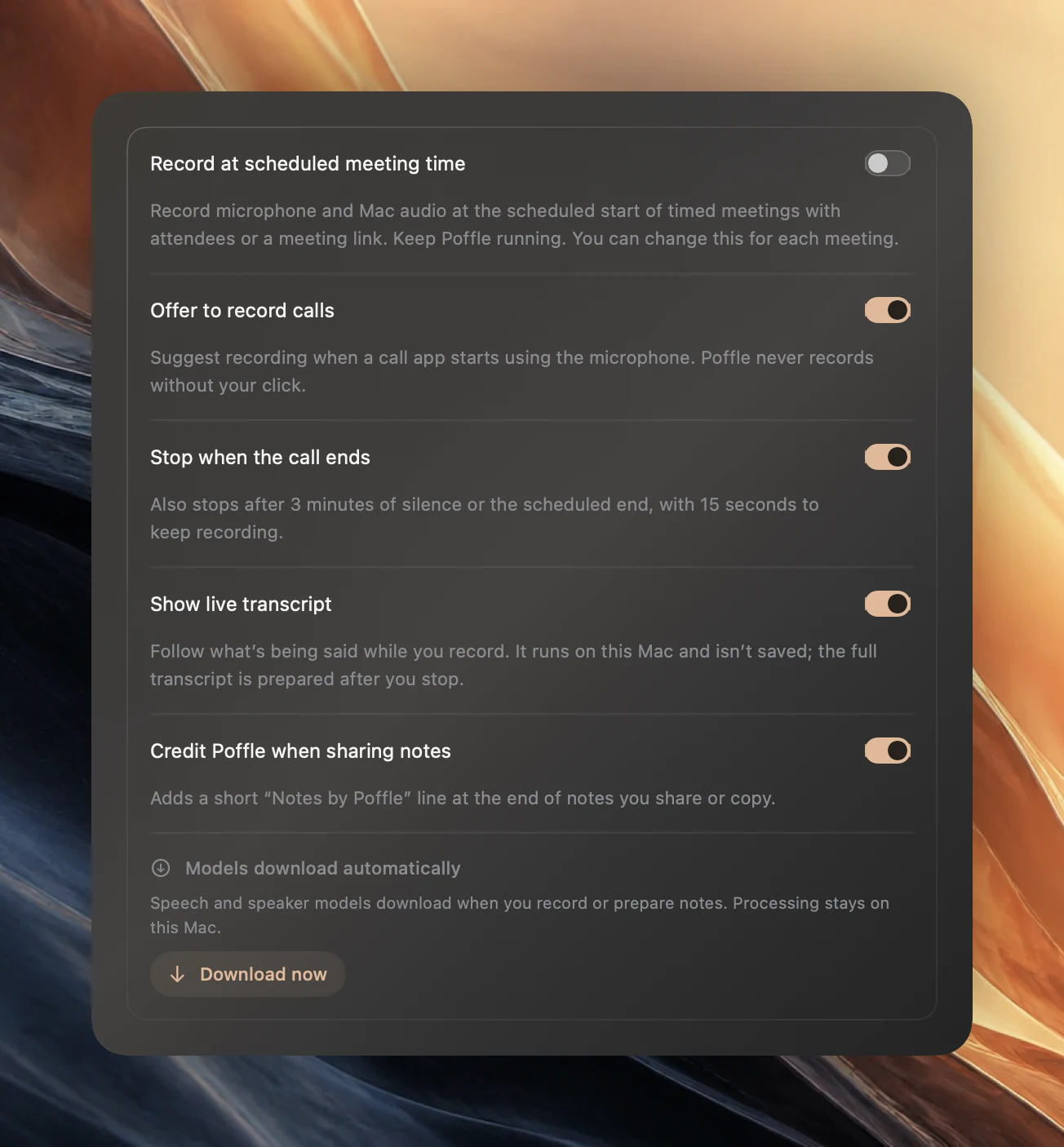
Stop when the call ends is on by default in Settings > Speech > Meetings. After you leave and Teams stops using the microphone for 20 seconds, Poffle starts a 15-second countdown with “Microsoft Teams ended the call.” Keep recording cancels it. If you let it run, both tracks are trimmed to 2 seconds after Teams last used the microphone.
When the recording is linked to the Teams event in your calendar, the scheduled end counts as well. If the meeting overruns and Teams is still using the microphone, Poffle keeps recording. Five minutes after the scheduled end, it offers to stop if no call app is using the microphone, or once the meeting has been quiet for a minute. Extending the event in your calendar postpones that.
For back-to-back Teams meetings, choose Stop and save between them. A new call that starts within 20 seconds counts as the same call, so the second meeting would land in the first recording.
Notes that know the attendees
If your Teams meetings appear in the Mac's Calendar, link the recording to the event: open it in Agenda and choose Record meeting, or click Record when only one meeting is in progress. The event's attendees then appear in each speaker's naming menu, and the number of attendees limits how many separate voices Poffle looks for. The title also chooses a notes layout: “Sprint planning” gets Planning notes and “Daily standup” gets Standup notes. The templates guide lists them all.
Teams questions
Can I use Poffle when Teams recording is turned off?
Yes. The Teams recording policy controls the Teams recorder; Poffle records your Mac's audio locally. Your organisation's rules and the attendees' agreement still apply.
Does Poffle use the Teams transcript?
No. It transcribes its own recording on your Mac with Apple's speech recognition. No Teams licence or transcription setting is involved, and nothing is uploaded.
I joined the audio from my phone. Why was there no offer?
The Mac only hears what passes through it. If the call audio is on your phone, Teams on the Mac isn't using the microphone or playing the meeting, so there's nothing for Poffle to notice or record.
Sources
Official documentation and references used in this guide.