
Meeting notes are most useful in the place where the work continues: an email to the people who missed the meeting, a page in your team's wiki, a note in Apple Notes. Poffle writes the notes on your Mac, and the meeting's options menu gets them out in three forms: through the Share menu, through the clipboard, or as a Markdown file with the full transcript.
Nothing leaves your Mac until you choose one of these. What happens after that depends on the app you share to.
Find the sharing options
- Open the meeting: from its event in Agenda, or with Control-Option-M for Search meetings.
- Click the options button (three dots) next to the playback bar.
- Choose Share notes…, Copy notes, Copy transcript or Export as Markdown….
Share notes… and Copy notes appear once the meeting has notes. Copy transcript needs a transcript. Export as Markdown… is always there.
Send the notes by email or Messages
Share notes… opens the macOS Share menu with the notes as text. Choose Mail to start an email whose subject is the meeting's title and whose body is the notes. Choose Messages, AirDrop or another app in the list to send them there. Apple explains the menu in Use the Share menu on Mac.
The shared text is plain and readable in any app. It starts with the title and a line with the date, the length in minutes and the attendees. Then come the summary, the sections, the decisions and the action items, which use check boxes and show the owner and due wording in brackets:
Weekly product sync

Thursday, October 8, 2026 at 10:00 AM · 31 min · Ana Ruiz, Ben Ito

Summary
• About 40 teams are in the beta; most feedback is about onboarding.

Beta feedback
• Teams get stuck on the empty state when they first open the app.

Decisions
• Launch on the 12th.

Action items
☐ Send the new onboarding mockups (You · by Thursday)
☐ Draft and share the release notes (Ben Ito · on Friday)

Notes by Poffle (poffle.app), recorded and written on a Mac.
The date follows your Mac's language and region settings. Completed actions show a ticked box. Dismissed actions are left out.
Paste the notes into a document or chat
Copy notes puts the same notes on the clipboard in two forms. Apps that read Markdown can use the Markdown version, with real headings and task check boxes. Every other app gets the plain text shown above. Paste with Command-V as usual.
Copy transcript copies the whole transcript as paragraphs, each with its start time and speaker. It uses the wording as recognised. To copy a single paragraph in the wording you see on screen, Control-click it in the Transcript tab and choose Copy passage.
Export Markdown with the transcript
Export as Markdown… asks where to save a file named after the meeting. The file contains the notes and the full transcript:
- A level-one heading with the title, and the same date, length and attendee line.
- Level-two headings for the summary, each section, the decisions and the action items.
- Action items as Markdown tasks,
- [ ]or- [x], with the owner in bold. - A Transcript section with one paragraph per speaker turn, each headed by the speaker's name and its time in the recording.
Markdown opens in most text editors and imports into many wikis and note apps. To save plain text instead, change the file extension to .txt in the save dialog.
Import the file into Apple Notes
In macOS Tahoe 26 and later, Notes converts Markdown into formatted notes. In Notes, choose File > Import Markdown and select the exported file. The note appears in an Imported Notes folder, in iCloud if you use it or On My Mac otherwise. Headings and lists come across as Notes formatting. Apple describes the import in Import or share notes and files to the Notes app.
For a quick note without the transcript, use Share notes… and choose Notes instead. That creates a note from the plain text.
The “Notes by Poffle” line
By default, shared, copied and exported notes end with a short credit line: “Notes by Poffle (poffle.app), recorded and written on a Mac.” In Markdown, it sits below a horizontal rule and links to poffle.app.
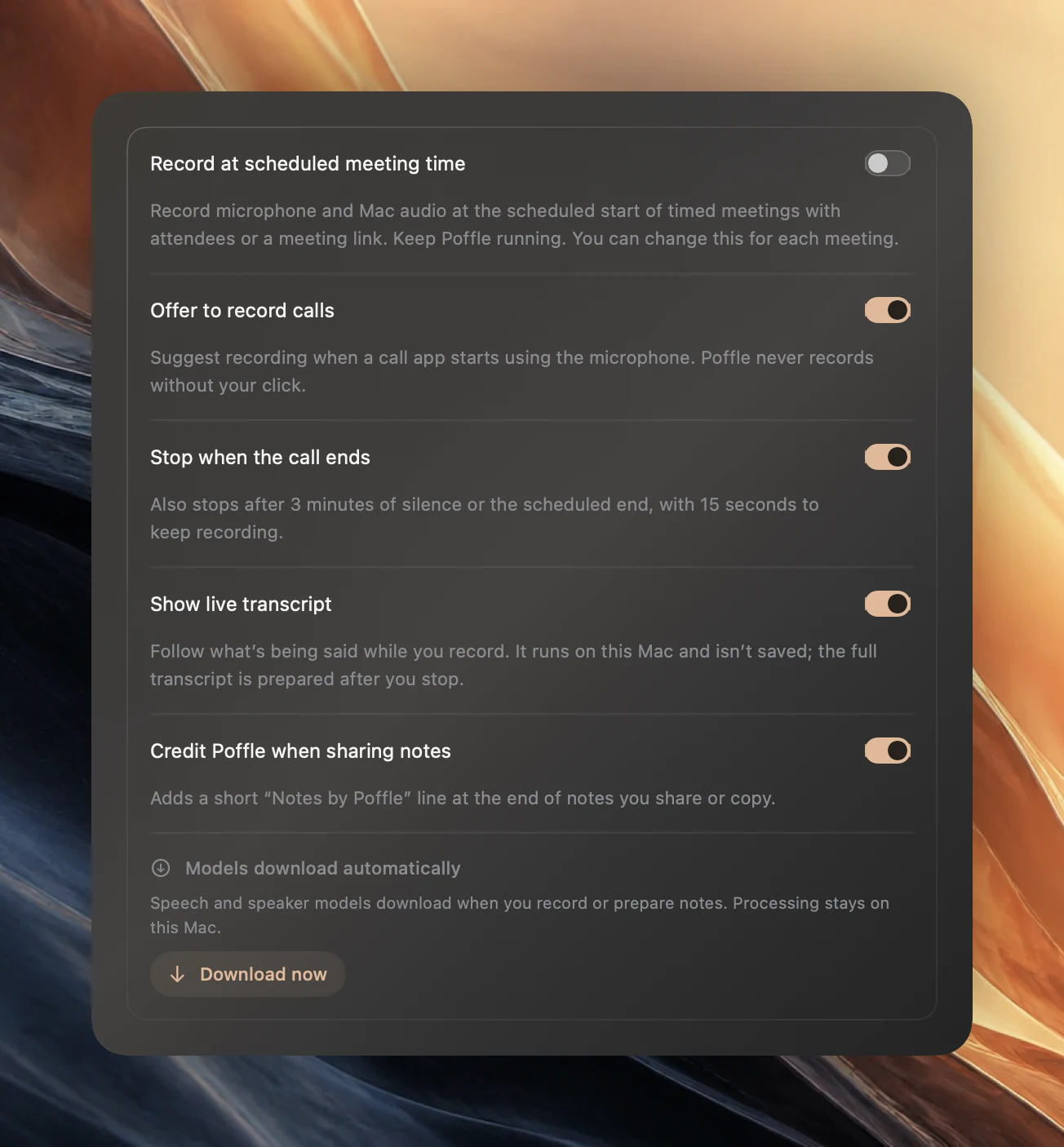
To leave it out, open Poffle's Settings > Speech > Meetings and turn off Credit Poffle when sharing notes. The change applies to the next notes you share, copy or export. Notes you already sent keep the line.
Read the notes before you send them
- Check names and numbers. Click a point's timestamp to hear its source. Notes are written by Apple Intelligence on your Mac and can be wrong.
- Rename speakers first. A transcript that says “Speaker 2” is harder to use than one with names. Click the speaker label in the transcript to choose an attendee or enter a name.
- Dismiss non-actions. Anything you dismiss stays out of what you share.
- Think about the transcript. It contains everything that was said, including asides. The Share menu and Copy notes send the notes only; the Markdown export includes the transcript.
- Respect the people in the meeting. They agreed to be recorded, not necessarily to have every word sent on.
For how the notes are made, see automatic meeting notes and action items. To make the transcript easier to read before you export it, see clean, readable meeting transcripts. You can download Poffle and try sharing the notes from a short test meeting.
Sources
Official documentation and references used in this guide.