
Sometimes you know the question but not which meeting answers it. When did we move the launch? Who said they would write the release notes? Poffle lets you ask your saved meetings in plain words. It finds the passages that match, and Apple Intelligence writes a short answer on your Mac with numbered sources you can open.
The answer comes only from your own saved notes and transcripts. When they do not contain it, Poffle says so instead of guessing.
Ask a question
- Open meeting search: press Control-Option-M, choose Search meetings… from Poffle's menu, click the magnifying glass in Agenda, or choose Search all meetings in Capture.
- Type your question in the field that reads “Search, or ask a question about your meetings”.
- Press Return or choose Ask.
Return asks when the text looks like a question: it ends with a question mark, or it has at least three words and starts with a question word such as what, who, when or did. Otherwise the field works as ordinary search, and Ask is there when you want an answer anyway. While Poffle works, the card reads “Reading your meetings on this Mac…”.
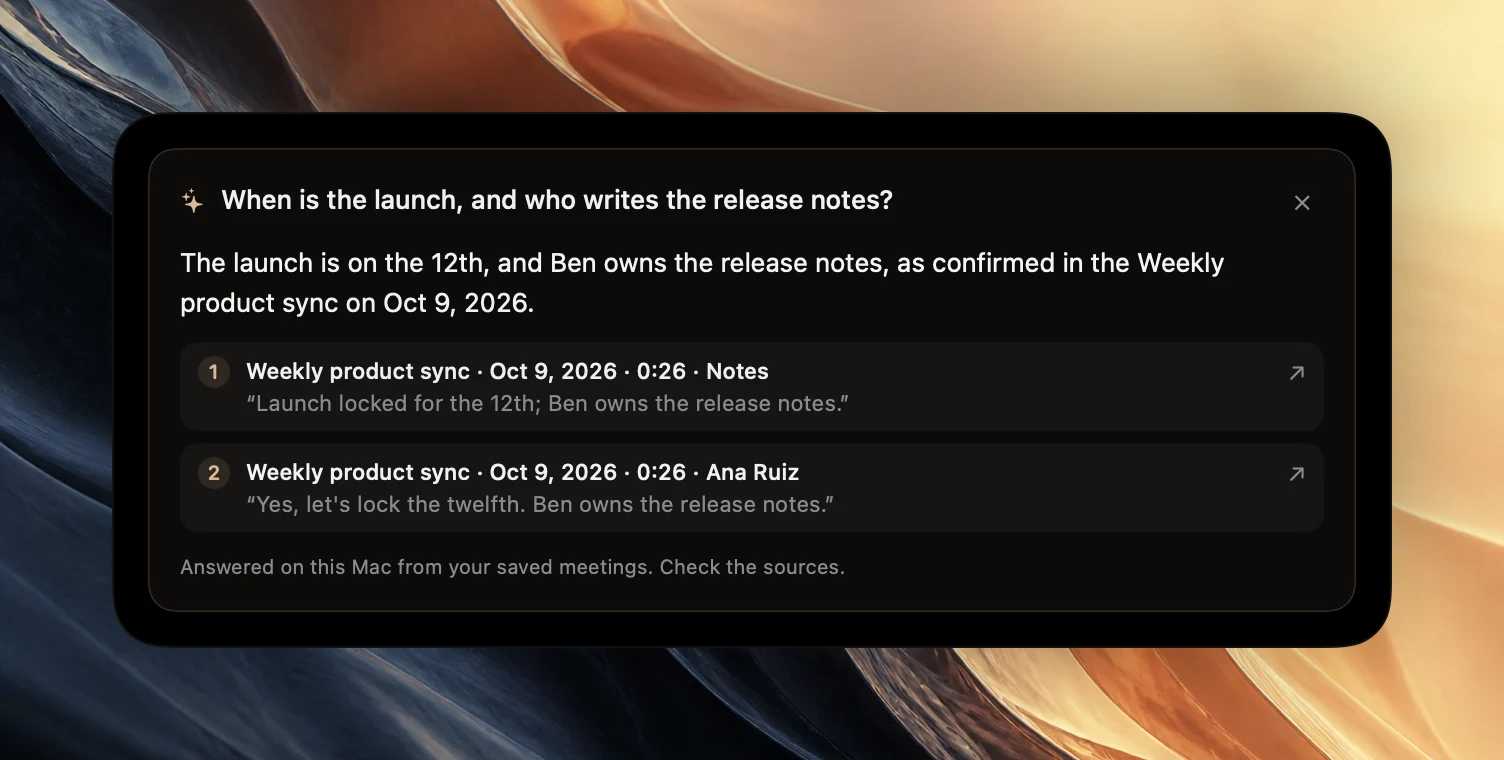
Where the answer comes from
Poffle first gathers up to 12 passages from your saved meetings: transcript turns, notes, decisions and action items. Dismissed actions are left out. Passages are ranked by the words they share with your question, ignoring case, accents and common words. Words in a meeting's title, its attendees and its topics add weight, and newer meetings win a tie. This step runs locally on the saved records and needs no model.
Apple Intelligence then reads only those passages and answers in at most three short sentences, in the language of your question. It has to cite at least one passage. Text inside the passages is treated as data, so a sentence in a transcript cannot instruct it to do something else.
Because the first step matches words, ask with the words people would have said. “When is the launch?” finds a passage that says “launch”. A question about “the release date” may miss it if nobody used those words.
Check the sources
Under the answer, each numbered source shows the meeting's title, its date, the time in the recording and the speaker or kind of item, followed by the quoted text. Click a source to open that meeting at the passage, then play it.
The card ends with “Answered on this Mac from your saved meetings. Check the sources.” The answer is a summary of the cited passages. A later meeting may have changed the decision, and a later passage in the same meeting may correct an earlier one. Before you repeat an answer to someone else, open the newest source.
When the answer is “doesn't seem to cover that”
If no passage contains the fact you asked for, the answer reads “Your saved meetings don't seem to cover that.” That is deliberate. It is more useful to know the notes are silent than to get a plausible guess.
- Use the words that were probably spoken: a project name, a person, a product, a date.
- Ask one thing at a time. “Who owns the release notes?” works better than a question with four parts.
- Check that the meeting was recorded and processed. A meeting still being transcribed has nothing to search yet.
- Try ordinary search with one or two words, then narrow by day, topic or the Notes, Actions and Transcript filters.
Questions that work well
- “What did we decide about pricing?” Decisions are short and quotable.
- “What did Ana ask me to send?” Speaker names and action owners count as words, so a name helps. Your own lines are labelled You, and the answer calls you “you”.
- “When is the onboarding review?” A concrete noun and a question word.
- “Did the customer mention single sign-on?” A yes or no question, answered with the passage.
Questions that need every meeting at once, such as “summarise the last quarter”, are a poor fit. Ask reads 12 passages, not your whole library. With the search field empty, meeting search lists saved summaries, decisions and actions across meetings; read those instead, or select a day in the search calendar.
Ask or search?
Ask and ordinary search share the same field, and they suit different jobs.
- Search lists every match, marks the matching days in the calendar and lets you narrow the results by topic, day and source. It needs no Apple Intelligence and returns results as you type. Use it to find all the meetings where something came up.
- Ask reads the best-matching passages and answers one specific question in a sentence or two, with sources. Use it when you want a fact, such as a date, an owner or a decision, and not a list of places to read.
The two work well in sequence. Ask first. If the answer is “doesn't seem to cover that” or the sources look thin, clear the question, search for a single word from it and read the matches yourself. When the answer points at the right meeting, open the source and read a minute on either side of it before you rely on the wording. The guide to searching recordings by transcript has more on choosing search words.
Requirements and privacy
- A Mac that supports Apple Intelligence, with Apple Intelligence turned on, and a language it supports. Apple lists them in How to get the next generation of Apple Intelligence.
- Saved meetings with transcripts or notes. See automatic meeting notes and action items.
If Apple Intelligence is unavailable, the card explains why, for example “Turn on Apple Intelligence in System Settings to ask about your meetings. Search still finds them.” Search works either way. Poffle uses Apple's on-device system language model, so questions, passages and answers stay on this Mac.
Ask works best on meetings with clear recordings and stable titles. To start building that library, download Poffle and record your next call with everyone's agreement.
Sources
Official documentation and references used in this guide.