
A useful meeting recording stays connected to what was said and where to check it. Poffle can capture your microphone and Mac audio in separate tracks and prepare a timestamped transcript on this Mac. When Apple Intelligence supports the selected language, it can also create an overview, decisions, and suggested actions. You can search by phrase, day, or topic, then follow a reviewed task back to its source.
Start recording deliberately, and tell everyone in the meeting before you do. Poffle does not announce the recording to attendees. The recording is saved on this Mac. Its transcript and, when available, generated notes help you review the conversation, not replace it.
Choose how to start
If the meeting is already in Calendar, open Poffle's Agenda Pofflet, connect it to your Mac's calendars, and select the event. Its Meeting notes section keeps the recording with that event. For a conversation without a calendar event, open Capture and use its Meetings section instead. Either route gives the recording a meeting title and a place in Poffle's meeting search.
- Check that the event title and time are right, then choose Record meeting. In Capture, choose Record meeting from the Meetings section.
- Allow microphone access when macOS asks. To capture audio played by other apps, also allow Poffle under System Settings > Privacy & Security > Screen & System Audio Recording. This permission controls access to system audio; Poffle records audio, not screen pixels. Apple documents the separate microphone permission and system audio permission.
- Make a short test in the same setup. Speak into the microphone and, for an online call, confirm that the other side can be heard through the Mac's audio output. Headphones can reduce echo and help keep the two tracks distinct.
Poffle stores microphone and system audio as separate tracks. The microphone track is useful for your side of an in-person conversation; the system track captures audio from other apps when macOS grants access. A test is the reliable way to check that the call app is sending sound to the Mac output you expect.
Scheduled recording is a separate opt-in. Open Settings > Speech > Meetings and enable Record at scheduled meeting time. When it is running, Poffle starts timed events with attendees or a meeting link at their scheduled start. An event can override that default with On for this meeting or Off for this meeting; choose On for another event you want to include. Scheduled recording still needs you to stop and save when the conversation is over, and it does not replace telling attendees.
Pause, then save the recording
Use Pause for a break in the discussion. While paused, Poffle stops capturing both microphone and Mac audio; the elapsed time does not include the paused interval. Resume when you are ready, then choose Stop and save. While you record, an optional live transcript follows what is being said; the full transcript and notes are prepared on this Mac after the capture is saved.
Prepare a local transcript and speaker labels
Set Settings > Speech > Transcription > Language to the main language in the meeting. Poffle uses Apple's SpeechAnalyzer and SpeechTranscriber for on-device transcription. The speech language assets download and install as needed, then the system keeps them. Keep the Mac online while a new language or speaker model is being prepared. Apple describes this workflow for long-form recordings, including meetings, in its SpeechAnalyzer session and AssetInventory documentation.
Poffle can group turns in the system-audio track when its speaker model is available; that model is downloaded separately and processed on this Mac. The microphone input is displayed as You, while detected system-audio turns use generic labels such as Speaker 1. Neither label identifies a person. “You” names the input track, and a room microphone can capture several people, so check the audio before assigning names.
- Open the saved meeting and switch to Transcript.
- Click a speaker label. Choose an attendee from the calendar event, or choose Enter a name and type one yourself.
- Check a few passages against the audio before relying on the label. A name you enter applies only to that meeting.
Meeting models are shown in Settings > Speech > Meetings. They download when you record or prepare notes; you can also choose Download now. If a language is unavailable, check the selected transcription language and the model status before trying to process the recording again.
Review summaries and actions
When Apple Intelligence is available on the Mac and supports the selected transcript language, Poffle uses Apple's on-device Foundation Model to prepare an overview, decisions, and possible action items. Poffle checks availability first. Apple notes that availability depends on the device and region, and the feature can be unavailable while its model is getting ready. Review Apple's SystemLanguageModel documentation and current Apple Intelligence requirements for your Mac and language.
If Apple Intelligence is unavailable or does not support that locale, Poffle keeps the recording and transcript available without a summary. When notes are generated, each item can point back to the transcript passage it came from. Read that passage or play its timestamp before accepting a name, deadline, or decision. Treat a generated action as a draft to check, not a task already agreed by everyone.
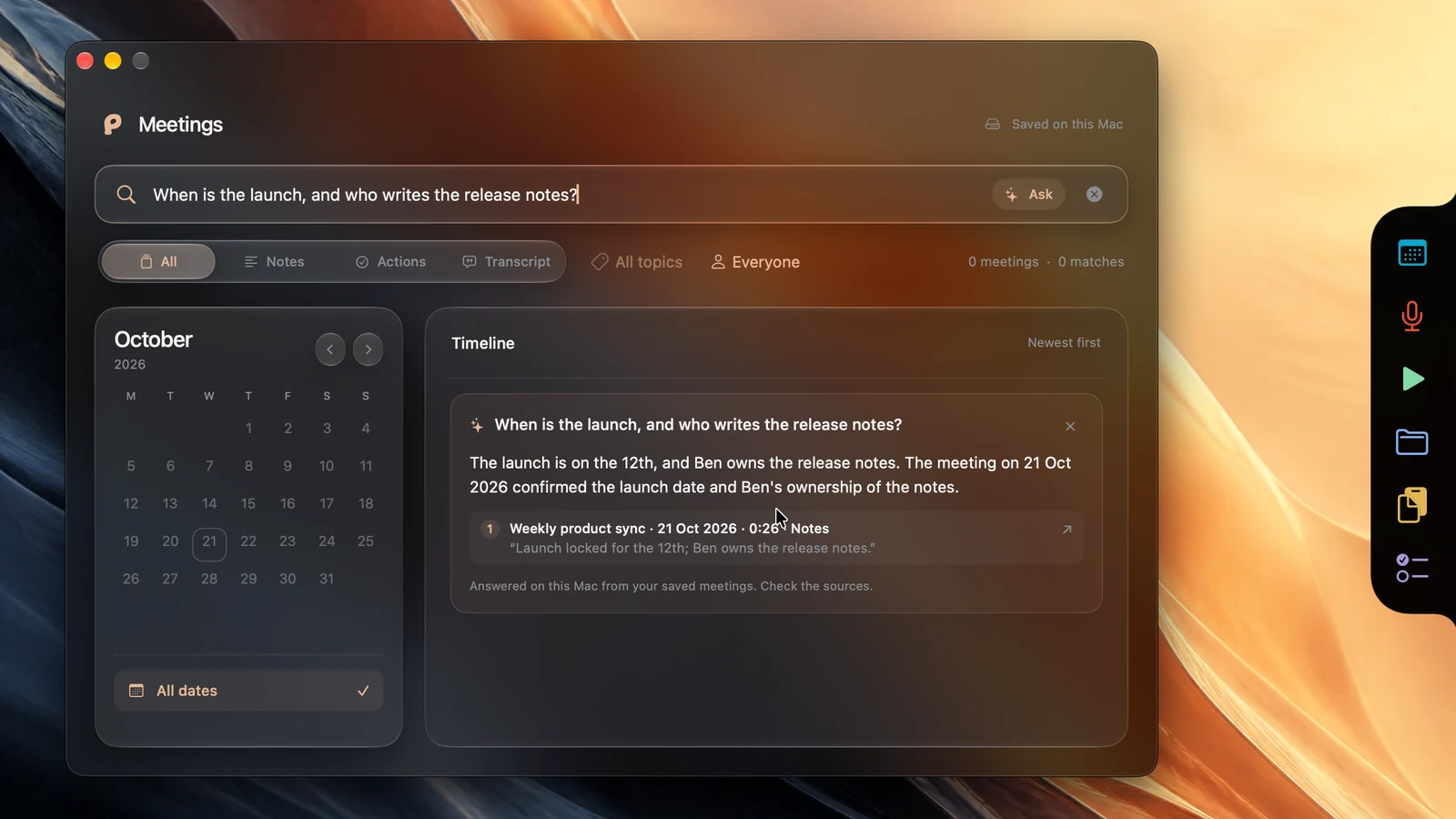
Find a meeting by phrase, day, or topic
Open Capture > Meetings > Search all meetings, or use the meeting-search shortcut shown in Settings > Activity > Keyboard. Search looks through meeting titles, attendee and speaker names, topics, notes, actions, and transcript text. You can narrow the results to notes, actions, or transcript; select a day in the calendar; or choose a topic.
Use one or two concrete words from the conversation, such as a project name or delivery date. If a speaker's name is uncertain, search for the topic they discussed instead. Open a result to read its surrounding context; when it has audio, choose the timestamp to play that part and verify the wording. Poffle's meeting search is separate from the voice-recording library, which has its own transcript search workflow.
Turn a reviewed action into a timed reminder
From the meeting's Summary, find the action item and choose Remind me. Connect Apple Reminders if asked, then review the reminder title, select a list, and leave Remind me at on to choose a date and time. Turn it off if you want to save the task without a scheduled nudge. This creates a reminder in Apple Reminders; Poffle's optional Reminders Pofflet can also show a peek when it is due. Apple documents how date and time fields work in its Reminders guide.
The reminder stays linked to its meeting action. In the Reminders Pofflet, open the reminder and choose Open meeting notes to return to the source meeting. From there, the action's transcript reference takes you back to the passage that prompted the follow-up. This keeps the useful chain intact: a sentence in the meeting, a reviewed task, and a reminder with a time attached.
For a visual walkthrough of the native recording, notes, search, and reminder flow, see Poffle's meeting demo. Explore Poffle, or download it for Mac and try the workflow with a short, familiar meeting.
Sources
Official documentation and references used in this guide.
- Apple Developer: Bring advanced speech-to-text to your app with SpeechAnalyzer
- Apple Developer: AssetInventory
- Apple Support: Allow use of the microphone and audio input on Mac
- Apple Support: Control access to screen and system audio recording on Mac
- Apple Developer: SystemLanguageModel
- Apple Support: How to get Apple Intelligence
- Apple Support: Add or change reminders on Mac