
Webex can record meetings itself, usually started by the host, and Webex lists cloud recording as unavailable on its Free plan (Webex's recording guide). If you're an attendee who wants your own record of the discussion, or you'd rather keep the transcript on your Mac, you can record your microphone and the meeting audio locally. Ask first: the host may have reasons not to record.
Webex Meetings, the Webex App and the browser
Poffle recognises both the Webex Meetings app and the Webex App, and labels either one Webex. It notices a meeting when one of them has used the microphone for 3 seconds, by checking a list macOS keeps of apps using the microphone. No extra permission is needed, and Poffle doesn't read the meeting window. Join from a browser and the offer names the browser instead.
Let Webex follow the system devices
In the Webex App, open Settings > Audio. You can choose the ringer, speaker and microphone, or choose Follow system setting to use the device macOS has as its default. Webex then follows the change when you switch devices in macOS (Webex's audio settings guide).
Follow system setting suits recording well. Poffle records the Mac's default input as your voice and follows it too, so when you plug in a headset mid-meeting, Webex and Poffle move to it together. With a fixed choice in Webex, you could end up speaking into one microphone while Poffle records another.
Smart audio and your recording
During a meeting, select Audio options to choose a Webex smart audio mode: Noise removal, the default; Optimize for my voice, which also removes background voices; Optimize for all voices, for a group in a meeting room; or Music mode (Webex's background noise guide). These modes change what Webex sends to the others. Poffle records your microphone directly, so they don't clean Poffle's copy of your voice.
The meeting room case needs a note of its own. If several colleagues share your Mac's microphone, they're all on Poffle's You track. Poffle separates speakers in the meeting audio, not within the microphone track. Keep that in mind when reading who said what, and check names against the recording.
Record the meeting
- Check Poffle's access in System Settings > Privacy & Security: Microphone, and Screen & System Audio Recording for the meeting audio. Poffle records audio, not your screen.
- If the meeting is in your calendar, open it in Agenda and choose Record meeting once you've joined. That keeps the title and attendee list with the recording.
- Or click Record when Poffle offers to record the Webex call.
- Tell the other participants that you're recording.
- Leave the meeting when it's over.
How the recording ends
After you leave and Webex has stopped using the microphone for 20 seconds, Poffle shows a 15-second countdown: “Webex ended the call.” Keep recording cancels it. If you let it finish, both tracks are trimmed to 2 seconds after Webex last used the microphone.
For a recording linked to a calendar event, Poffle also watches the scheduled end. While the meeting is still going in Webex, Poffle keeps recording. Five minutes after the scheduled end, it offers to stop if no call app is using the microphone, or once the meeting has been quiet for a minute. The saved meeting notes the reason, for example “Stopped automatically after the scheduled end.”
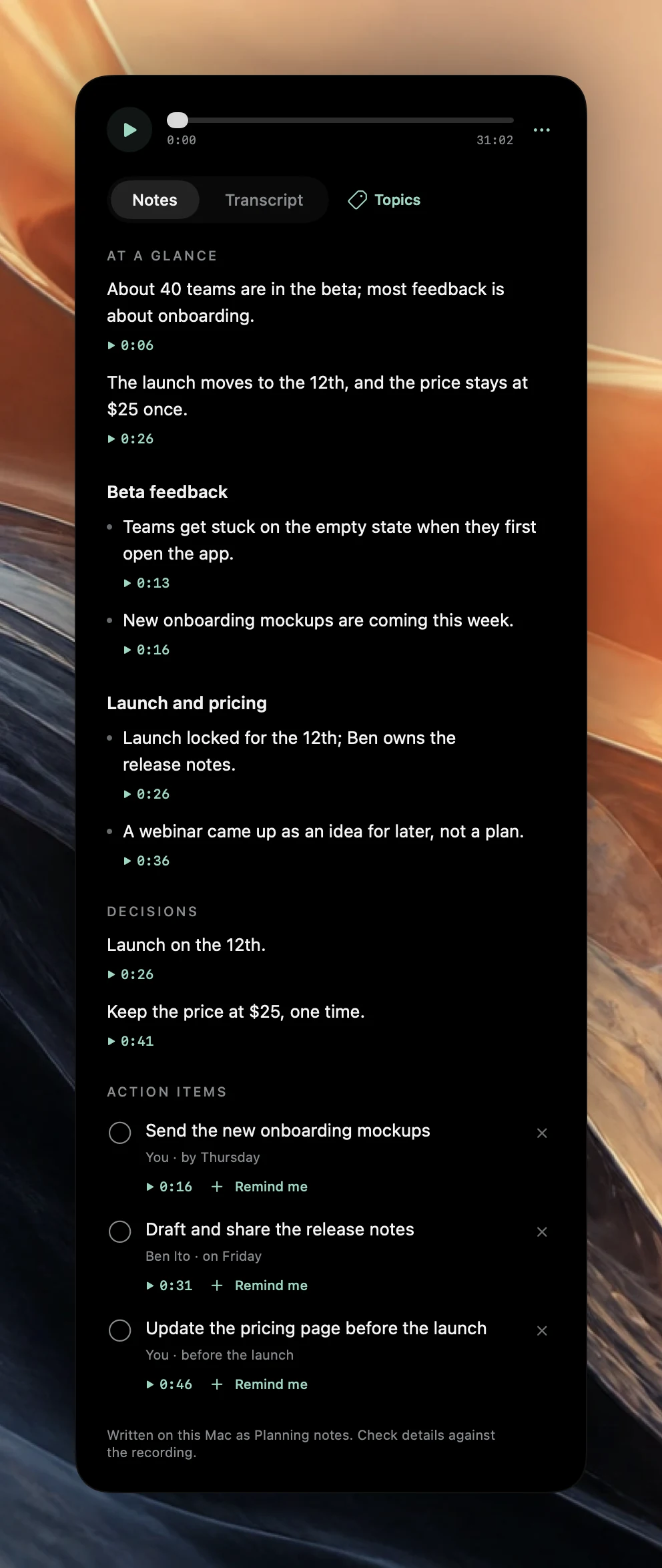
Once the recording is saved, Poffle transcribes it and separates the speakers on your Mac. When Apple Intelligence is available for the language, it writes an overview, sections, decisions and action items. The notes guide explains how to check each item against the recording.
Tell participants
When someone records with Webex, Webex shows a recording indicator in the meeting window. Poffle doesn't appear in Webex at all, and it doesn't announce the recording. Say it at the start, and in the chat for anyone who joins later.
Webex questions
Do I need to be the host to use Poffle?
No. Webex's host and cohost roles control the Webex recorder. Poffle records what your Mac plays and hears. The participants' agreement still matters.
Which layout will the notes use?
The event title chooses it. “Customer demo” becomes a customer call and “Q3 roadmap” a planning meeting; other titles get general notes. The templates guide lists the keywords.
Can I record a Webex meeting that's playing on another device?
No. Poffle records this Mac's microphone and the audio this Mac plays, so the meeting has to be running here.
Sources
Official documentation and references used in this guide.