
FaceTime on a Mac can show Live Captions while you talk, but captions don't give you a recording to replay or a transcript to search later. For that, record the call's audio together with your microphone. This guide shows how to do it with Poffle, which recognises FaceTime and calls relayed from your iPhone, and how FaceTime's own audio options affect the result.
FaceTime calls and iPhone calls
Poffle notices a call when an app has used the microphone for 3 seconds. For FaceTime, that includes the system service FaceTime uses to connect calls, so video and audio calls are both recognised and labelled FaceTime. Calls you make or answer in the Phone app, relayed from your iPhone, are labelled Phone. Apple explains how to set up phone calls on the Mac.
The Phone app has its own Call Recording. Apple says both participants hear an audio notice that the call is being recorded, and the recording is saved in a Call Recordings folder in Notes (Phone app guide). Poffle's recording is different: it plays no notice, keeps the audio and transcript in Poffle on your Mac, and adds speaker labels and notes. Use whichever fits, and tell the other person either way.
Before you call
- Allow Poffle to use the microphone. Apple's microphone guide shows where to check it.
- Allow Poffle under System Settings > Privacy & Security > Screen & System Audio Recording, so it can record the other side of the call (Apple's guide). Poffle records audio, not the FaceTime video.
- Choose where you'll hear the call in System Settings > Sound > Output (Apple's sound output guide). Headphones keep the other person's voice out of your microphone.
What Mic Mode changes
During a FaceTime video call, the Video button in the menu bar offers Mic Mode; during an audio call, it's the Audio button. Voice Isolation prioritises your voice and blocks ambient noise, while Wide Spectrum keeps the sounds around you, as Apple describes in FaceTime's audio options.
Mic Mode shapes what FaceTime sends to the other person. Poffle records your microphone separately, so its copy of your voice doesn't go through Voice Isolation. In a noisy room, the other person may hear you more clearly than your own track sounds later. A closer microphone, or a quieter room, improves the transcript of what you said.
Record the call
- Start or answer the FaceTime call.
- Tell the other person you'd like to record, and wait for their answer.
- Click the red dot in the peek at the edge of the screen, or Record in Record this call? in Agenda.
- Use Pause if the conversation turns private. Paused audio is not saved.
- Hang up. After FaceTime stops using the microphone for 20 seconds, Poffle shows a 15-second countdown with “FaceTime ended the call.” Choose Keep recording to continue, or let it stop.
A FaceTime call is rarely a calendar event, so the recording is usually saved as “FaceTime call”. If you scheduled the call, Poffle links the recording to the event when exactly one is in progress or starts within 5 minutes, and keeps the event's title.
Put names on the voices
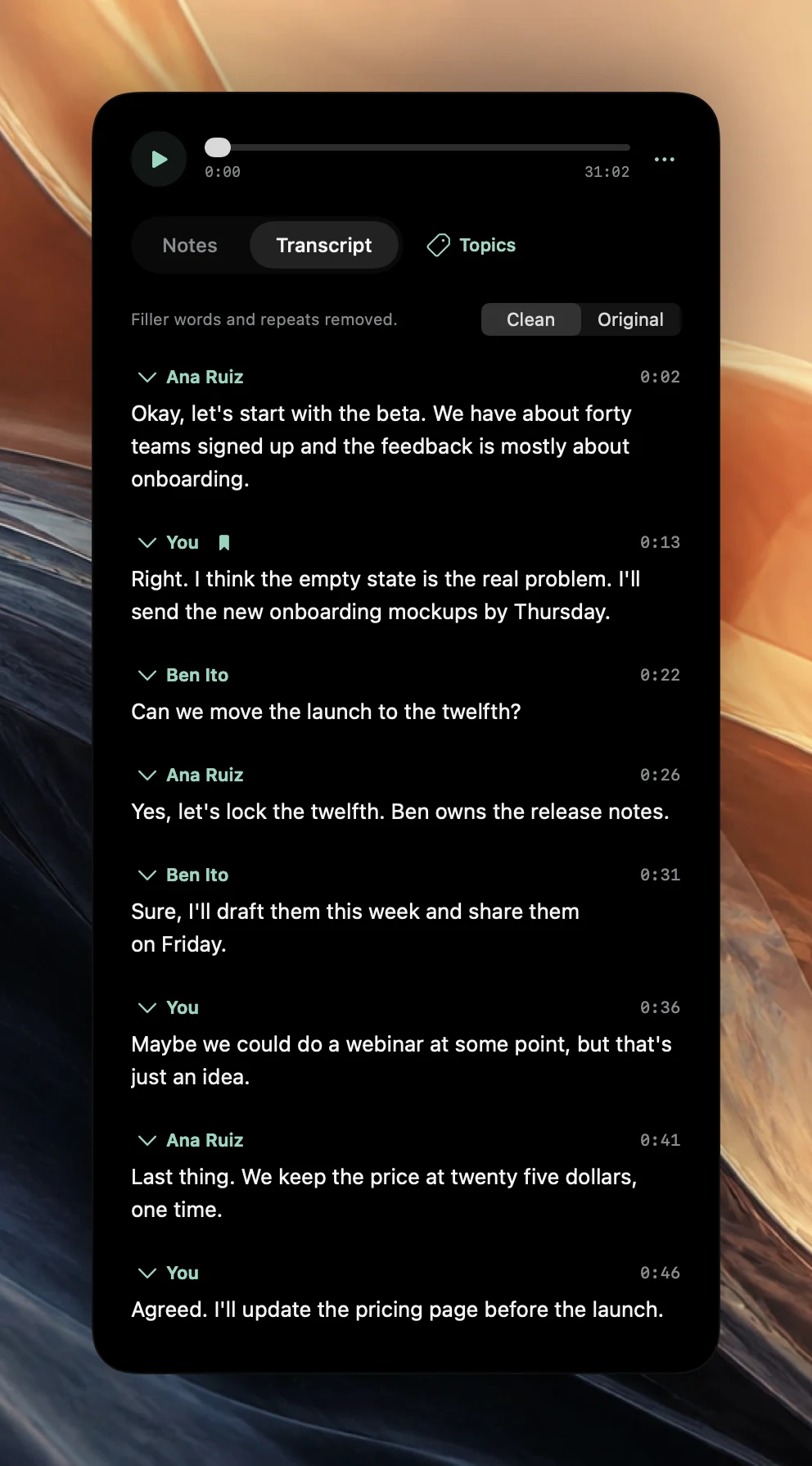
Your microphone is labelled You. After you stop, Poffle separates the voices in the call audio on your Mac and labels them Speaker 1, Speaker 2 and so on. In a one-to-one call there is usually one. Click a label to name it: attendees from a calendar event are listed there, or choose Enter a name…. The name applies to that meeting only.
For a Group FaceTime call linked to an event, the number of attendees limits how many voices Poffle looks for, which keeps one person from being split into two. Check a few passages against the audio before relying on the names. Readable meeting transcripts covers speaker names, filler words and echo in more detail.
FaceTime questions
Can I keep Live Captions on while recording?
Yes. Live Captions runs in FaceTime on Mac computers with Apple silicon, in supported languages (Apple's Live Captions guide). Poffle shows its own live transcript in the recording controls and prepares the full transcript after you stop.
Does the other person get a notice?
Not from Poffle. The Phone app's Call Recording plays an audio notice; Poffle doesn't, so tell them yourself.
Do I need Apple Intelligence?
Not for the recording or the transcript. Notes, decisions and action items use Apple Intelligence on your Mac when it's available for the language.
Sources
Official documentation and references used in this guide.