
A Slack huddle often starts with someone clicking the headphones icon in a channel. There's no invitation, no agenda and usually no record. When a huddle turns into a decision you'll want to check later, you can record it on your Mac: your microphone and the huddle's audio, transcribed locally and searchable next to your other meetings.
What Poffle sees when a huddle starts
Poffle checks which apps are using the microphone, from a list macOS keeps. When the Slack app has used it for 3 seconds, Poffle offers to record a Slack call. It sees the app, not the conversation, so it doesn't know which channel the huddle is in and doesn't read Slack. If you use Slack in a browser, the offer names the browser instead.
Because huddles rarely have a calendar event, the recording is usually saved as “Slack call”. If one timed event is in progress, or starts within 5 minutes, and it's the only one, Poffle links the recording to it instead.
Record a huddle
- Join or start the huddle. Slack starts one from the headphones icon at the top of a channel or DM (Slack's huddles guide).
- Say that you'd like to record, before the discussion gets going.
- Click the red dot in the peek, or Record in Record this call? in Agenda or Capture.
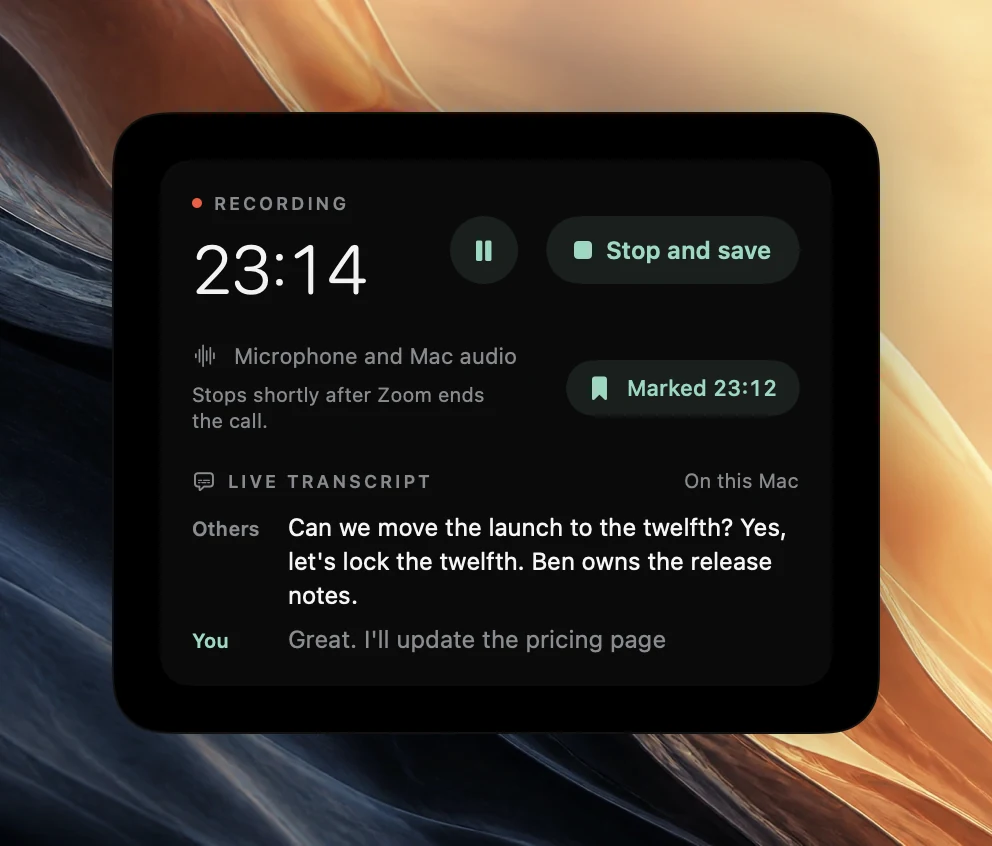
- Use Mark moment, or Control-Option-B, when something is decided, so you can find it in the notes later.
- Leave with Leave. Slack ends a huddle when the last person leaves.
Poffle needs microphone access and Screen & System Audio Recording access for this; Apple documents both, for the microphone and for system audio. It records audio only.
Slack's audio preferences
Click your profile picture in the sidebar, choose Preferences, then Audio & video. There you choose the Microphone and Speaker, manage automatic gain control, and find Slack's noise suppression, as described in Slack's huddle preferences.
Choose the microphone your Mac uses as its input. Poffle records that default input as your side of the huddle, and the other voices from the Mac audio. Slack's noise suppression cleans what Slack sends to others; Poffle records your microphone directly, so its copy of your voice isn't filtered. Headphones keep the huddle's audio out of your microphone. When some of it gets in anyway, Poffle leaves those repeated passages out of the transcript and tells you.
Long, quiet huddles
Some teams leave a huddle open while they work, talking only now and then. Poffle's Stop when the call ends option also stops a recording after 3 minutes in which both your microphone and the Mac audio stay quiet. You get a 15-second countdown first, with “It's been quiet for 3 minutes.” Choose Keep recording, and Poffle won't stop for silence again until there has been sound.
For a planned break, use Pause instead. Nothing is recorded while paused, paused time doesn't count as silence, and the recording still stops if the huddle ends.
When you leave, Poffle notices that Slack has released the microphone. After 20 seconds it shows the countdown with “Slack ended the call,” then saves the recording, trimmed to 2 seconds after Slack last used the microphone.
Slack's AI notes, and telling people
Slack has its own AI notes for huddles. Slack says they're off by default, and that everyone in the huddle is notified when notes are started, stopped or cancelled (Slack's AI notes guide). Poffle sends nothing to Slack and shows nothing in the huddle. Tell the people in the huddle that you're recording, and repeat it when someone joins halfway through.
Find the huddle later
Huddle recordings appear in Capture's Meetings section and in Search meetings, which opens with Control-Option-M. Search covers transcripts, notes and action items, so a phrase from the huddle is enough. Add a topic, such as the project name, to keep huddles with the meetings about the same work. To ask a question across all of them, see asking questions about your meeting notes.
Slack huddle questions
Are Slack's live captions part of the recording?
No. Slack says huddle captions aren't saved once the huddle ends. Poffle's transcript is prepared from its own recording, on your Mac.
Will a huddle recording get notes?
Yes, when Apple Intelligence is available for the language. “Slack call” doesn't suggest a meeting type, so the notes use the general layout. Choose another with Rewrite notes as in the meeting's options menu.
Can Poffle record every huddle automatically?
No. Poffle only offers; nothing records until you click Record. Scheduled recording applies to calendar events, not huddles.
Sources
Official documentation and references used in this guide.