
Discord voice channels are open-ended. People join, leave, step away and come back, and the conversation can run for hours. If you want a record of a voice call, for a club meeting, a project discussion or a planning session on a server, you can record it on your Mac with your microphone and the call audio on separate tracks, then read and search a transcript prepared on the Mac.
How Poffle recognises Discord
Poffle notices calls from a list macOS keeps of apps using the microphone. Discord, Discord PTB and Discord Canary are all recognised and labelled Discord. When you join a voice channel or a call and Discord has used the microphone for 3 seconds, Poffle offers to record it. Poffle doesn't read Discord and doesn't know which server or channel you're in. In a browser, the offer names the browser.
Moving from one voice channel to another counts as one call if Discord is using the microphone again within 20 seconds, so your recording continues through the move.
Discord voice settings that affect the recording
Open User Settings with the cogwheel, then Voice & Video, as in Discord's voice and video troubleshooting guide. Three settings matter:
- Input Device and Output Device. Use the microphone and speakers your Mac uses by default. Poffle records the Mac's default input as your voice and follows it when it changes.
- Input Mode. With Push to Talk, Discord sends your voice only while you hold the key. Poffle records your microphone directly, so its You track includes what you say between presses. Pause the recording for anything you don't want kept.
- Noise Suppression. Discord's Krisp noise suppression runs on your device and filters only your side, according to the Krisp FAQ. It doesn't filter Poffle's copy of your voice, and other people's background noise depends on their own settings.
Record a voice call
- Allow Poffle the microphone and Screen & System Audio Recording in System Settings > Privacy & Security. The second is how it hears the others; it records audio, not your screen.
- Join the voice channel or call.
- Tell everyone you're recording. In a server, post it in the channel's text chat too.
- Click the red dot in the peek, or Record in Record this call? in Agenda or Capture.
- Disconnect when you're done. The recording stops shortly afterwards, as described below.
Without a calendar event, the recording is saved as “Discord call”. For a scheduled session that's also in your Mac's calendar, start from the event in Agenda with Record meeting to keep its title.
Game audio, music and other sounds
Poffle's second track is everything your Mac plays, apart from Poffle itself. It isn't limited to Discord. A game, a music bot in the channel, a video in your browser and notification sounds all end up in the recording, and they make the transcript harder to read. Lower or mute what you don't need, and use headphones so the call doesn't leak back into your microphone.
Long sessions and quiet stretches
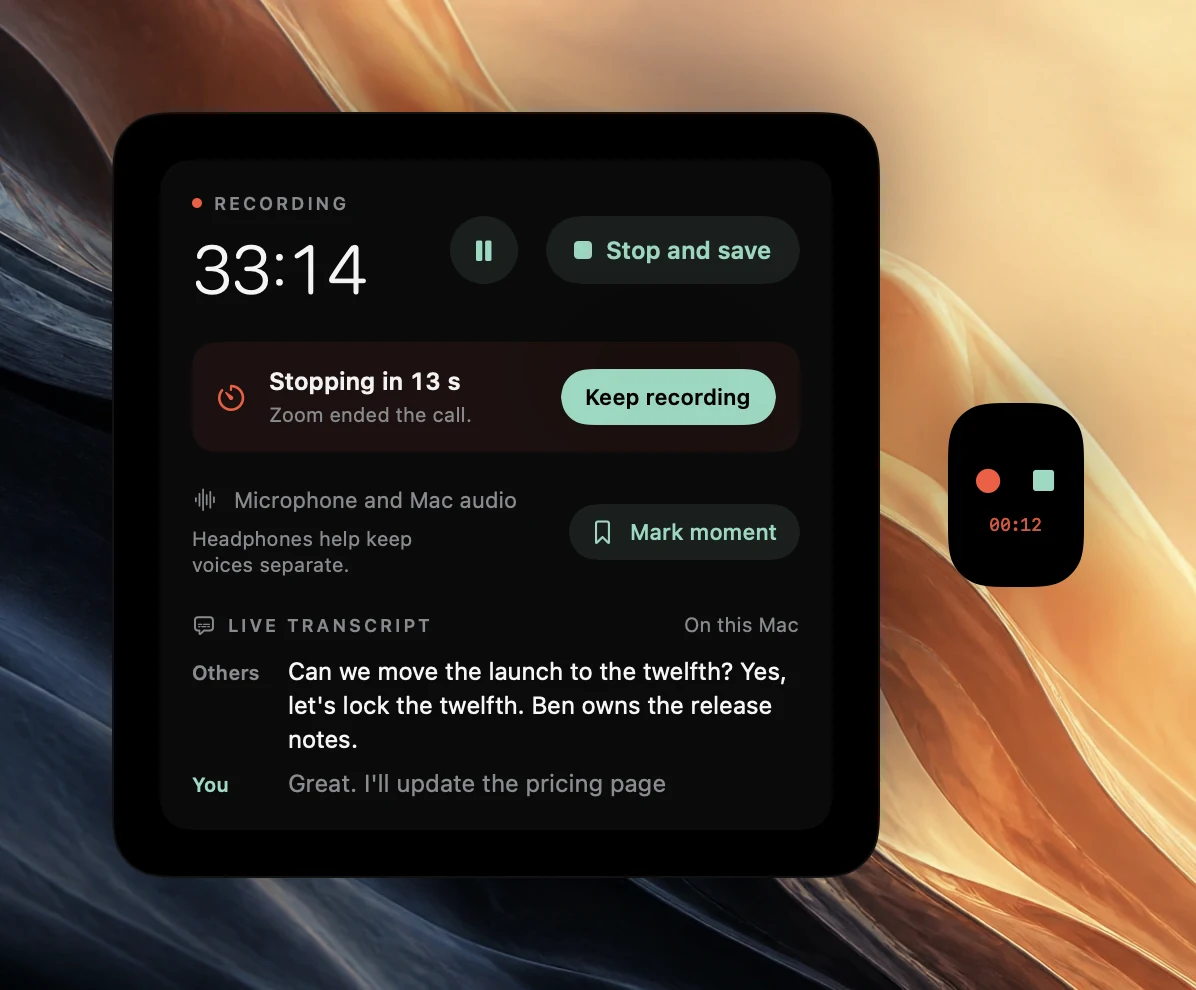
With Stop when the call ends on, which is the default, Poffle stops in three situations: Discord has stopped using the microphone for 20 seconds; your microphone and the Mac audio have both been quiet for 3 minutes; or a linked calendar event ended 5 minutes ago and there's no call or a minute of quiet. Each shows a 15-second countdown first. Keep recording cancels it, and Poffle won't stop for that reason again until it resets, when Discord uses the microphone again or the sound returns. If a countdown appears while you're still connected, choose Keep recording.
In a voice channel where people mostly listen, the 3-minute silence stop is the one you'll meet. For a planned break, Pause is cleaner: nothing is recorded, paused time never counts as silence, and the recording still stops if you disconnect. Use Mark moment, or Control-Option-B, to bookmark the parts you'll want to replay.
People who join later
Poffle doesn't announce recordings, and nothing appears in Discord. In a channel people drift into, an announcement at the start doesn't reach someone who arrives an hour later. Say it again when people join, and follow the server's rules about recording voice chat.
Discord questions
Can Poffle tell the voices apart?
After you stop, Poffle separates the voices in the call audio on your Mac and labels them Speaker 1, Speaker 2 and so on, which you can rename. Overlapping speech stays unassigned rather than guessed, so busy channels with crosstalk are harder than a calm call.
Will I get meeting notes from a casual call?
Notes are written for meetings: topics, decisions and action items. For a casual call, the transcript and Search meetings are often more useful than the summary.
Does any audio leave my Mac?
No. Recording, transcription and speaker separation happen on your Mac, and notes use Apple Intelligence on the Mac when it's available.
Sources
Official documentation and references used in this guide.