
A weekly meeting goes better when you remember what happened last week: what was agreed, and which tasks are still open. Searching through old notes takes longer than the two minutes you usually have. Poffle puts that summary next to the event in Agenda, on your Mac, so you can read it while the countdown to the meeting runs.
It works for any meeting you recorded before with Poffle: a weekly 1:1, a team sync, a monthly client review. The brief comes from saved notes on this Mac. Nothing is fetched from a server.
What the Last time brief shows
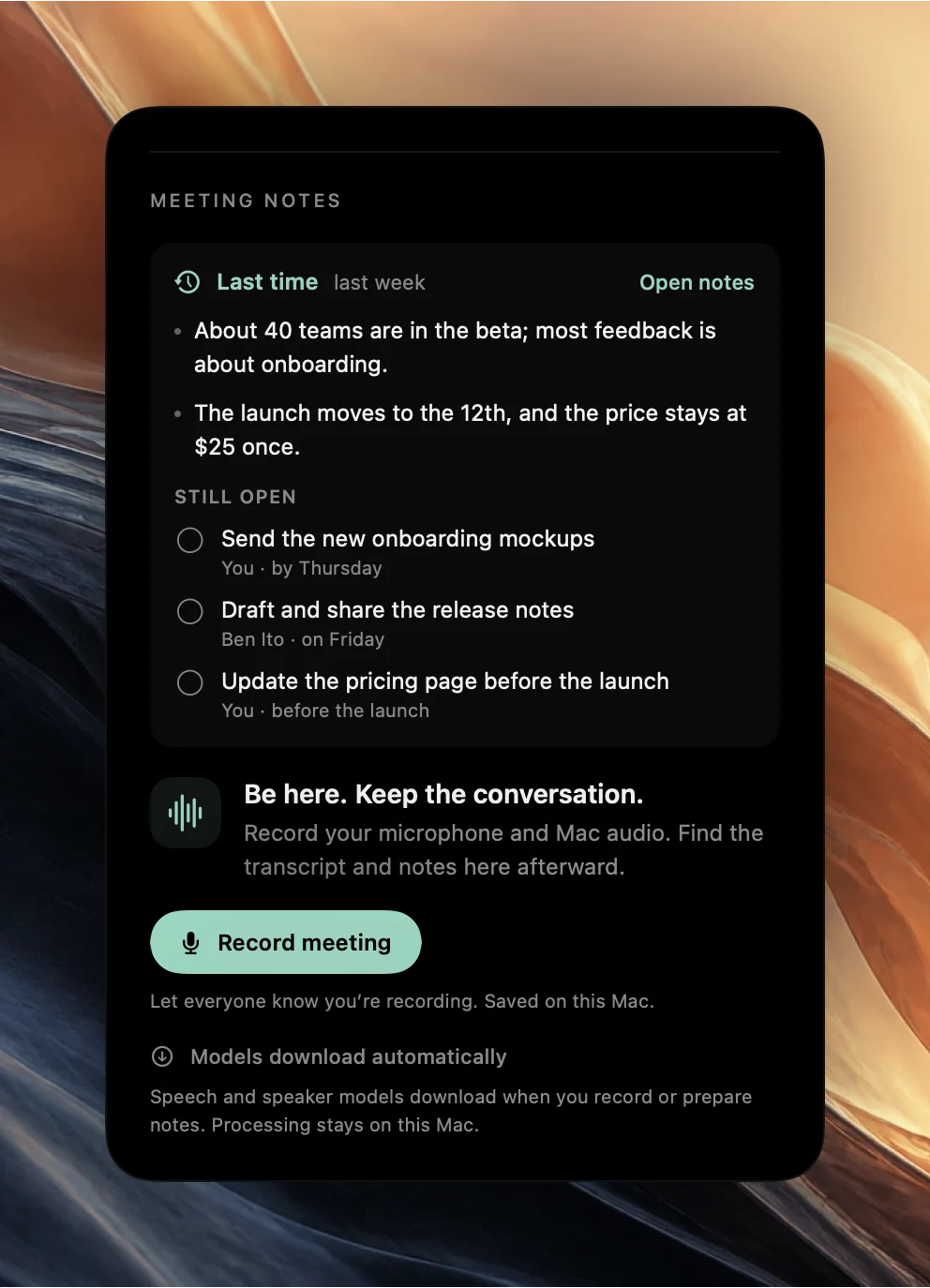
Open the next occurrence of the meeting in Agenda. Above the recording button, its Meeting notes section shows Last time with how long ago the previous meeting was, for example “last week”.
- Up to three points from the previous meeting's notes, usually from its At a glance summary.
- Still open: up to five actions that are not complete yet, from the last three meetings in the series, each with its owner and due wording.
- Open notes, which opens the full notes of the previous meeting.
If the previous meeting has a transcript but no notes, for example because Apple Intelligence was unavailable, the brief says the transcript from that date is ready to review instead.
How Poffle finds the previous meeting
Poffle looks for the most recent earlier recording of the same meeting. It counts as the same meeting when one of these is true:
- It is an occurrence of the same repeating event in the same calendar.
- It has the same title, and at least half of the attendees are the same.
- Neither meeting lists attendees, and both have the same title of at least two words in the same calendar.
Title matching ignores case, accents and punctuation. A recording of the current occurrence is never used as its own brief. To set up a meeting as a repeating event, see Apple's guide to repeating events in Calendar.
Find it before the meeting starts
You do not have to open the event to know a brief is waiting. When the next meeting in Agenda has one, its card shows a short line such as “Last time yesterday · 2 open actions”, or “notes ready” when nothing is open.
Poffle's countdown tells you when to look. Set Meeting heads-up in Settings > Activity > Timing to between 1 and 30 minutes. When the next timed meeting enters that window, Agenda's peek shows a countdown at the edge of the screen. For a sound as well, turn on Play before a meeting in Settings > Feedback > Meeting sound. Keep your next meeting visible with a countdown covers the peek settings in detail.
A two-minute routine
- When the heads-up appears, open Agenda and select the meeting.
- Read the Last time points. They are what you agreed, in your own meeting's words.
- Go through Still open. Tick what is done. Note anything you need to report on.
- If a point needs context, choose Open notes and play its timestamp.
- Join the meeting. If you record it, tell everyone first and choose Record meeting, so the new notes join the same series.
Done this way, the first minutes of a weekly meeting can go to decisions instead of reconstructing last week.
Close actions as you go
Ticking the circle next to an action in Still open completes it in the meeting it came from. If you added that action to Apple Reminders with Remind me, the reminder completes too, and completing it in Reminders completes it in Poffle. Dismissed actions never appear in the brief. Apple explains reminder dates and alerts in Add or change reminders on Mac.
The list shows at most five actions. If more are open, deal with the visible ones, then check the earlier meetings in Search meetings with the Actions filter.
Keep the series useful week after week
A brief improves with each meeting you record well. A few habits make the difference:
- Record from the event. Start with Record meeting in the event's Meeting notes, or accept Poffle's offer to record a call. Poffle links an offered call to the event when it is the only timed event in progress or about to start.
- Name the speakers. Rename “Speaker 2” in the transcript once, and the owners in Still open show real names next week.
- Dismiss what is not an action. A list of five open actions is only useful if all five are real.
- Use a template that fits. A weekly 1:1 titled “1:1 Ana and Ben” gets the 1:1 template with Updates, Feedback, Blockers and Growth.
When there is no brief
- It is the first recorded meeting of the series. The brief starts from the second meeting.
- The title changed. A renamed meeting that is not part of the same repeating event no longer matches. Keep recurring titles stable.
- Too few attendees in common. If most of the people changed, Poffle treats it as a different meeting.
- No attendees and a different calendar. Without attendee lists, a title only matches within the same calendar, and it needs at least two words.
- You already recorded this occurrence. Once it has its own recording, the event shows that meeting's notes instead.
The brief is only as useful as last week's notes. For notes that are worth reading back, see automatic meeting notes and action items and the 1:1 template. You can download Poffle and record this week's meeting, with everyone's agreement, so next week starts with a brief.
Sources
Official documentation and references used in this guide.